---
title: "শিক্ষার্থী নির্দেশিকা"
description: "আপনার course খুঁজুন, অফলাইনে পড়াশোনা করুন এবং Quire-এ পড়াকে আরামদায়ক করে তুলুন।"
image: "https://docs.quirelms.com/og.png"
---
> Documentation Index
> Fetch the complete documentation index at: https://docs.quirelms.com/bn/llms.txt
> Use this file to discover all available pages before exploring further.
# শিক্ষার্থী নির্দেশিকা
আপনার প্রতিষ্ঠান যে ঠিকানা ও sign-in তথ্য দিয়েছে তা ব্যবহার করুন। কোনো course বা activity না পেলে enrolment ও access যাচাই করতে শিক্ষক বা প্রশাসকের সঙ্গে যোগাযোগ করুন।
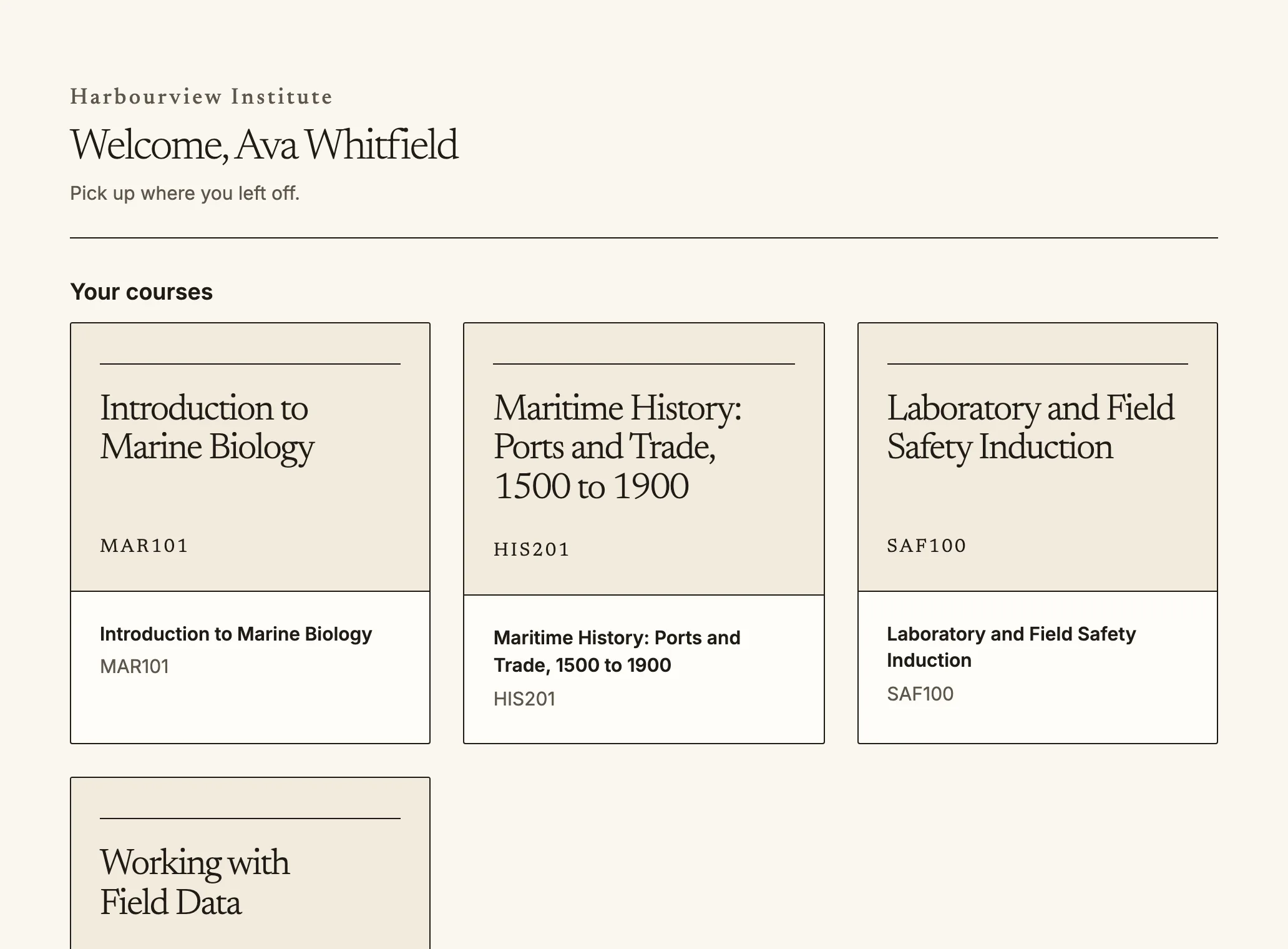
The dashboard lists your courses and where you left off.
আপনার course Quire-এ থাকে। প্রতিষ্ঠানের ঠিকানায় sign in করুন; dashboard (`/dashboard`)-এ কী জমা দিতে হবে, নতুন কী এসেছে এবং কোথায় থেমেছিলেন তা দেখায়।
## আপনার course
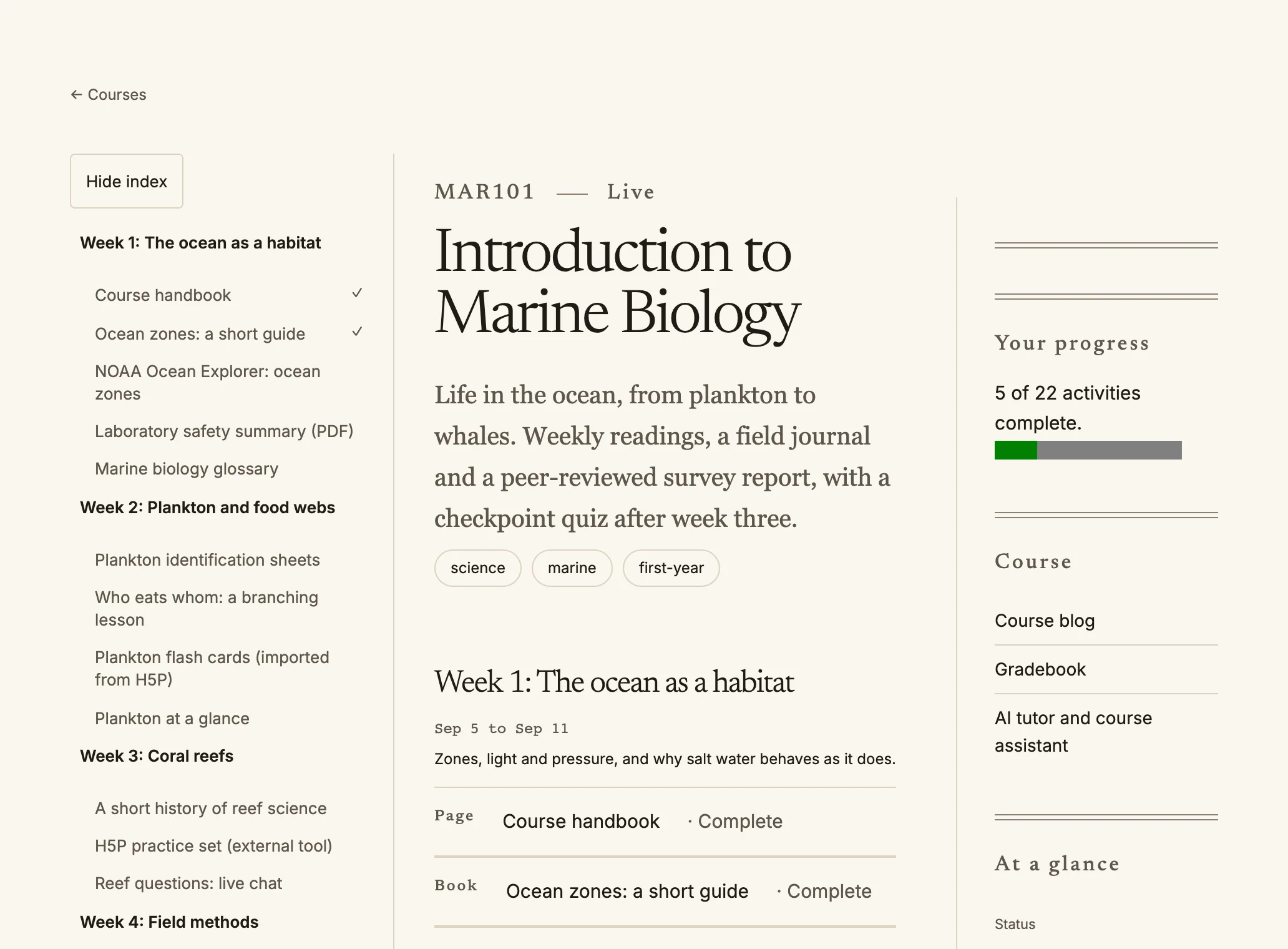
Inside a course: the index on the left, your progress on the right.
- **My courses** (`/my/courses`)-এ আপনার অগ্রগতিসহ আপনি যে সব course-এ নথিভুক্ত তার তালিকা থাকে।
- Course-এর ভেতরে বাঁ পাশে course index (ডান থেকে বামে পড়া ভাষায় ডান পাশে) আপনাকে প্রতিটি section-এ নিয়ে যায়। টিকচিহ্নে সম্পন্ন বিষয় দেখা যায়।
- অন্য প্রতিষ্ঠান আপনার প্রতিষ্ঠানের সঙ্গে course শেয়ার করলে এখানেও দেখায়; **Shared by**-এর পাশে সেই প্রতিষ্ঠানের নাম থাকে। অন্য course-এর মতোই এতে কাজ করুন; আপনার attempt ও grade নিজ প্রতিষ্ঠান সংরক্ষণ করে।
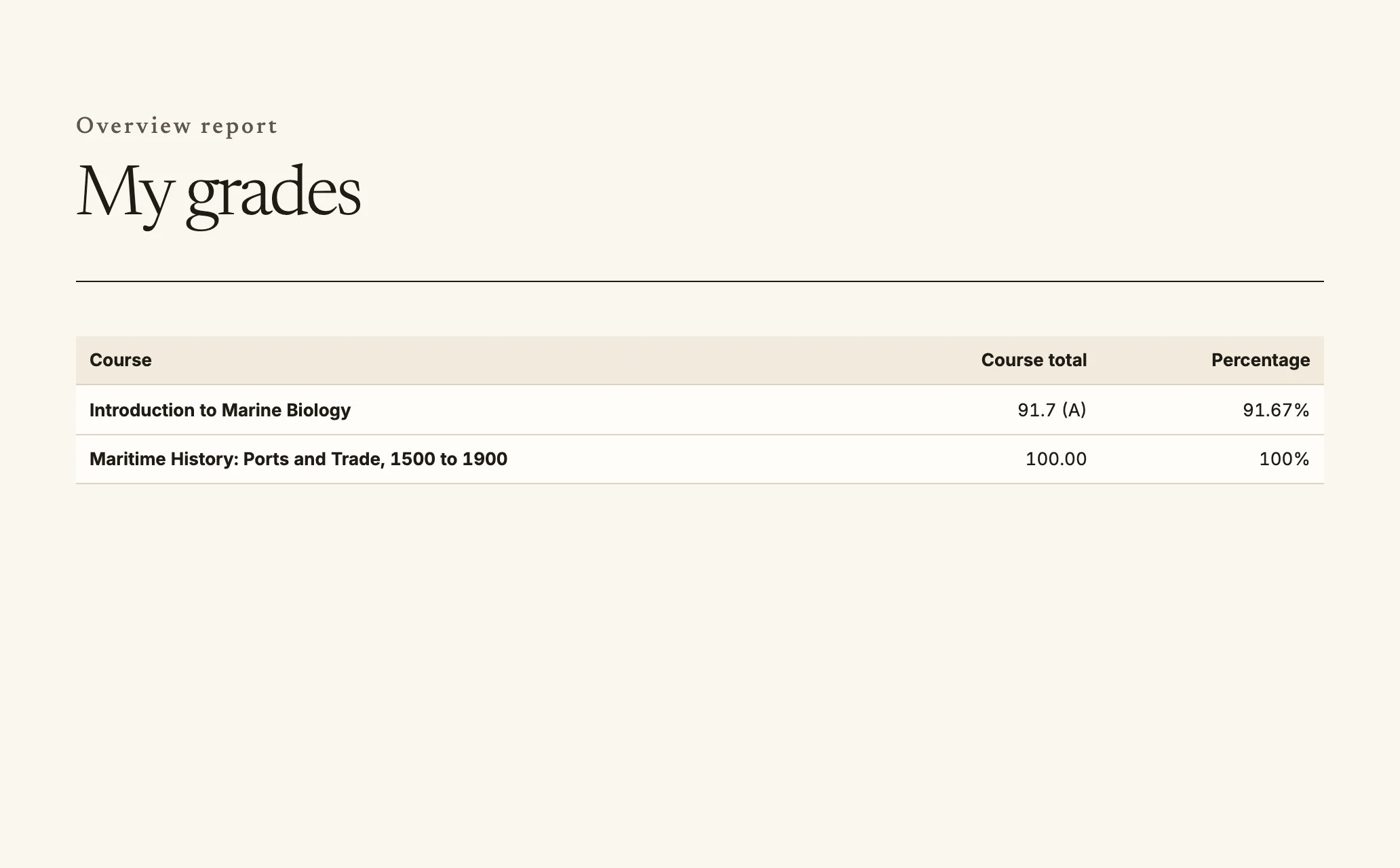
- **Grades** (`/my/grades`)-এ শিক্ষক প্রকাশ করার পর আপনার mark ও feedback দেখায়।
- **Certificates** (`/my/certificates`) ও **badges** (`/my/badges`)-এ আপনার অর্জন থাকে; যে link দিয়ে যে কেউ তা যাচাই করতে পারে।
My grades shows one row for each course.
## AI tutor
আপনার প্রতিষ্ঠান AI tutor দিলে, সেটি আছে এমন প্রতিটি course-এ **AI tutor** পৃষ্ঠা থাকে। সেখানে course সম্পর্কে প্রশ্ন করলে আপনি যে material খুলতে পারেন তার উৎসসহ উত্তর পাওয়া যায়। প্রথম প্রশ্নের আগে প্রতিষ্ঠানের AI ব্যবহারের নীতিতে সম্মতি দিতে হয়। উত্তর ভুল হতে পারে, তাই course-এর সঙ্গে মিলিয়ে যাচাই করুন।
Course-এর শিক্ষক tutor কথোপকথন পড়তে পারেন। প্রতিবার পড়ার তথ্য রেকর্ড হয় এবং আপনিও দেখতে পান: কথোপকথনে কোন staff সদস্য কখন পড়েছেন তা বলা হয়, আর **AI tutor access log** (`/my/ai-privacy`; আপনার privacy page থেকেও link আছে)-এ প্রতিটি পড়ার তথ্য তালিকাভুক্ত। প্রতিষ্ঠান যতদিনের জন্য কথোপকথন রাখে সময় শেষে তা delete হয়; course শেষ হলে আপনিও নিজে একটি মুছতে পারেন।
## অফলাইন
ট্রেনে বা signal না থাকলেও course download করে সংযোগ ছাড়া পড়তে পারেন।
1. Course খুলে **Download for offline** বেছে নিন। Quire এই device-এ course-এর page ও file সংরক্ষণ করে।
2. স্বাভাবিকভাবে পড়ুন। Offline হলে banner তা জানায়।
3. checklist-এর item টিক দেওয়ার মতো অফলাইনে করা কাজ device-এ রাখা হয় এবং online হলে পাঠানো হয়। `/offline`-এ অপেক্ষমাণ কাজ দেখা, আবার পাঠানো এবং কী পাঠানো যায়নি ও কেন তা জানা যায়; এখানে **Retry** ও **Discard** আছে।
জায়গা খালি করতে `/offline`-এ **Remove from this device** বেছে নিন। Sign out করলে device থেকে আপনার প্রতিষ্ঠানের প্রতিটি download সরানো হয়।
Phone বা tablet-এ account menu থেকে Quire **install** করেও app-এর মতো খুলতে পারেন।
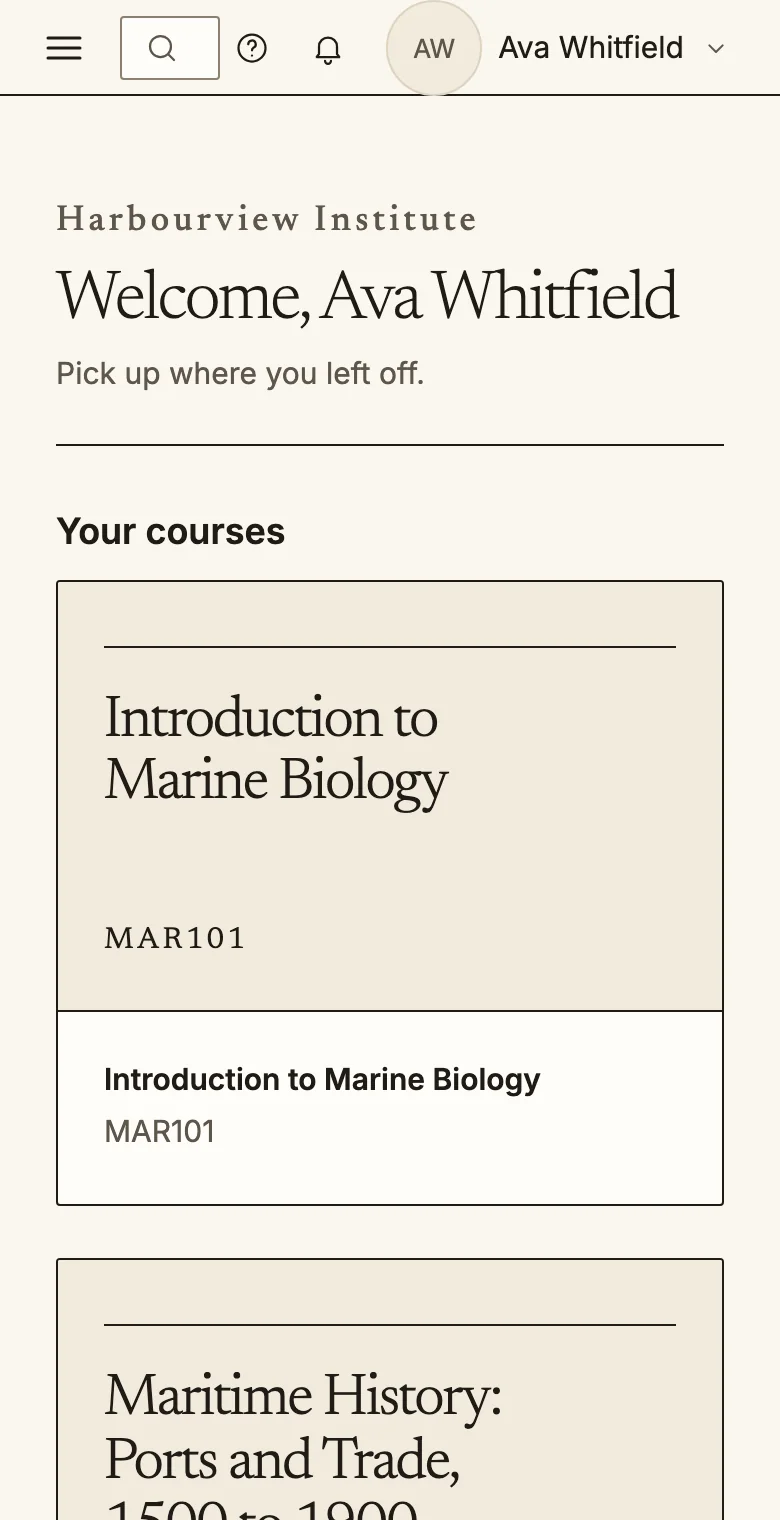
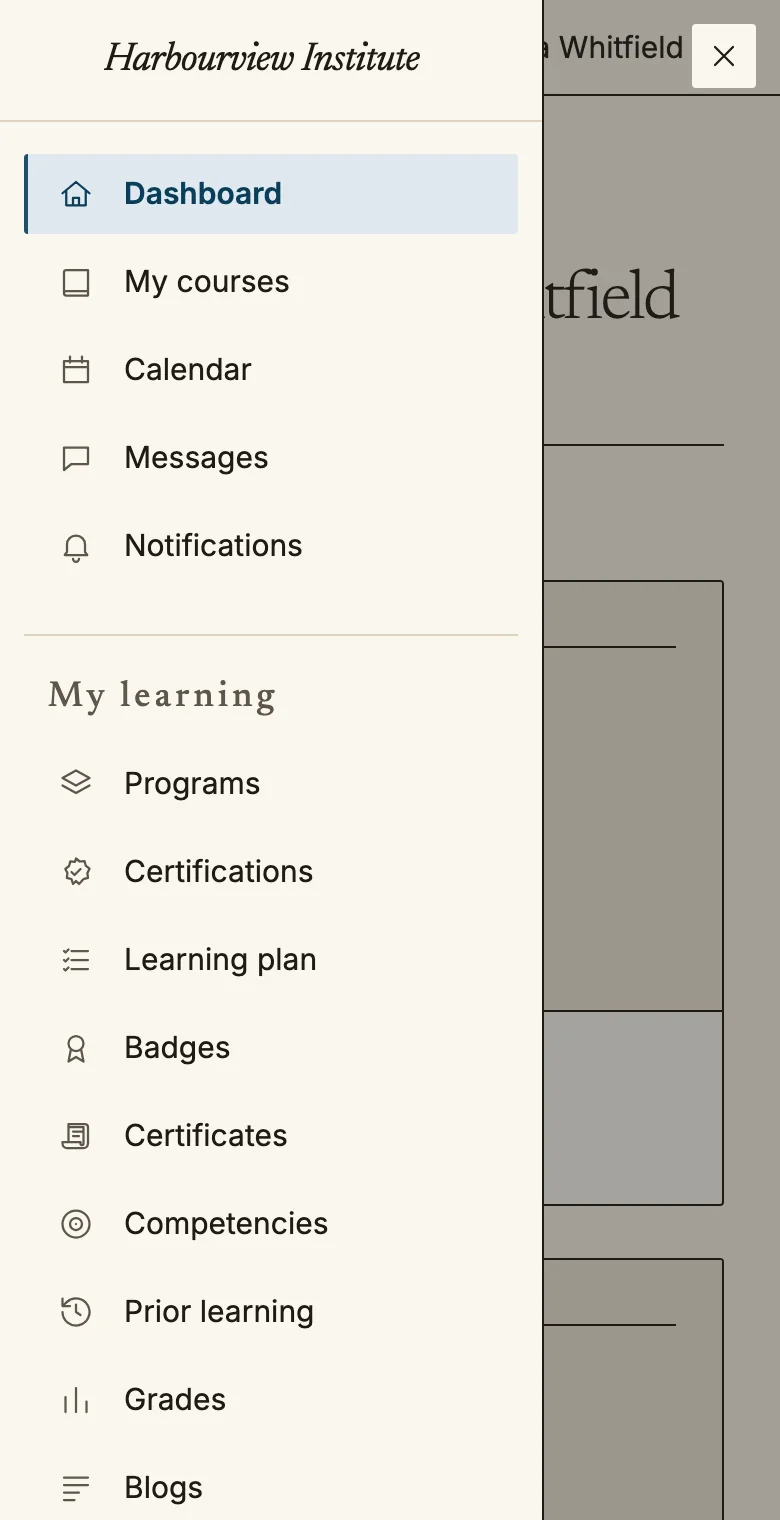
On a phone the navigation opens from the menu button at the top left.
## Quire-কে আরামদায়ক করা
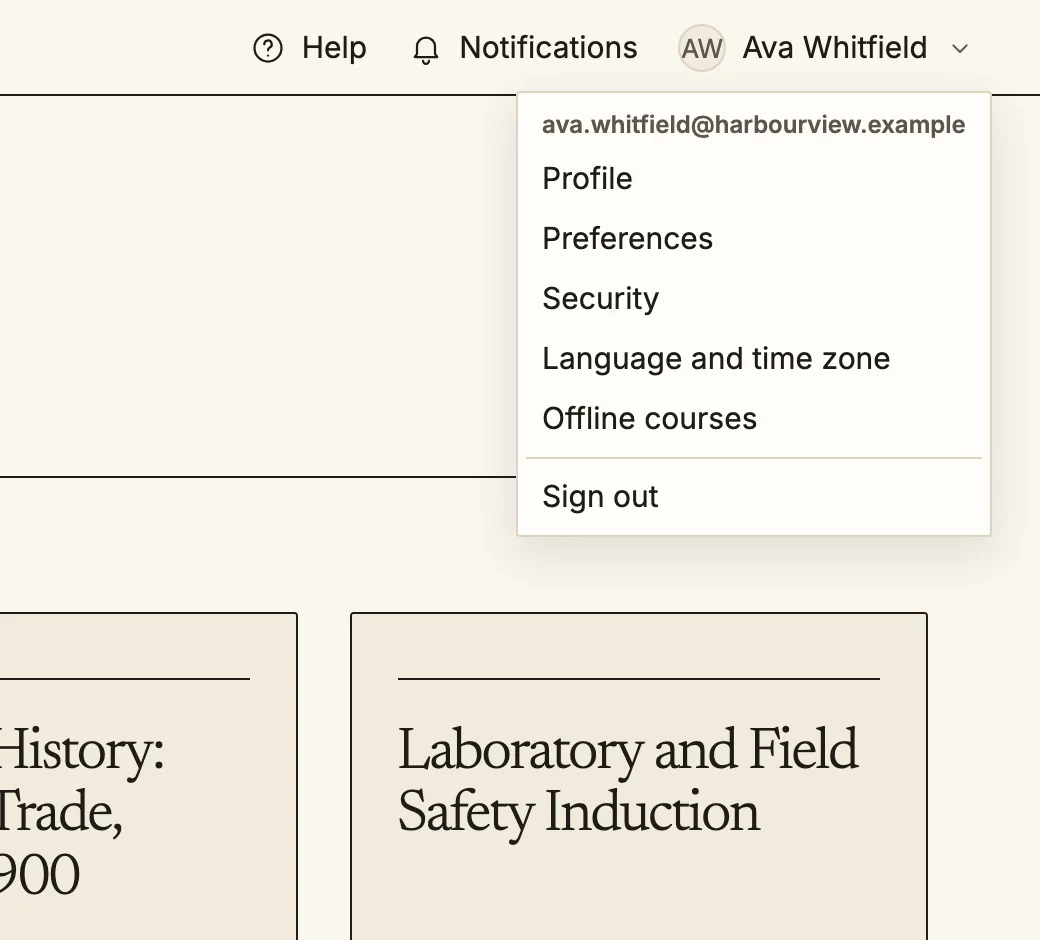
Account menu (`/account/preferences`) থেকে **Preferences** খুলুন।
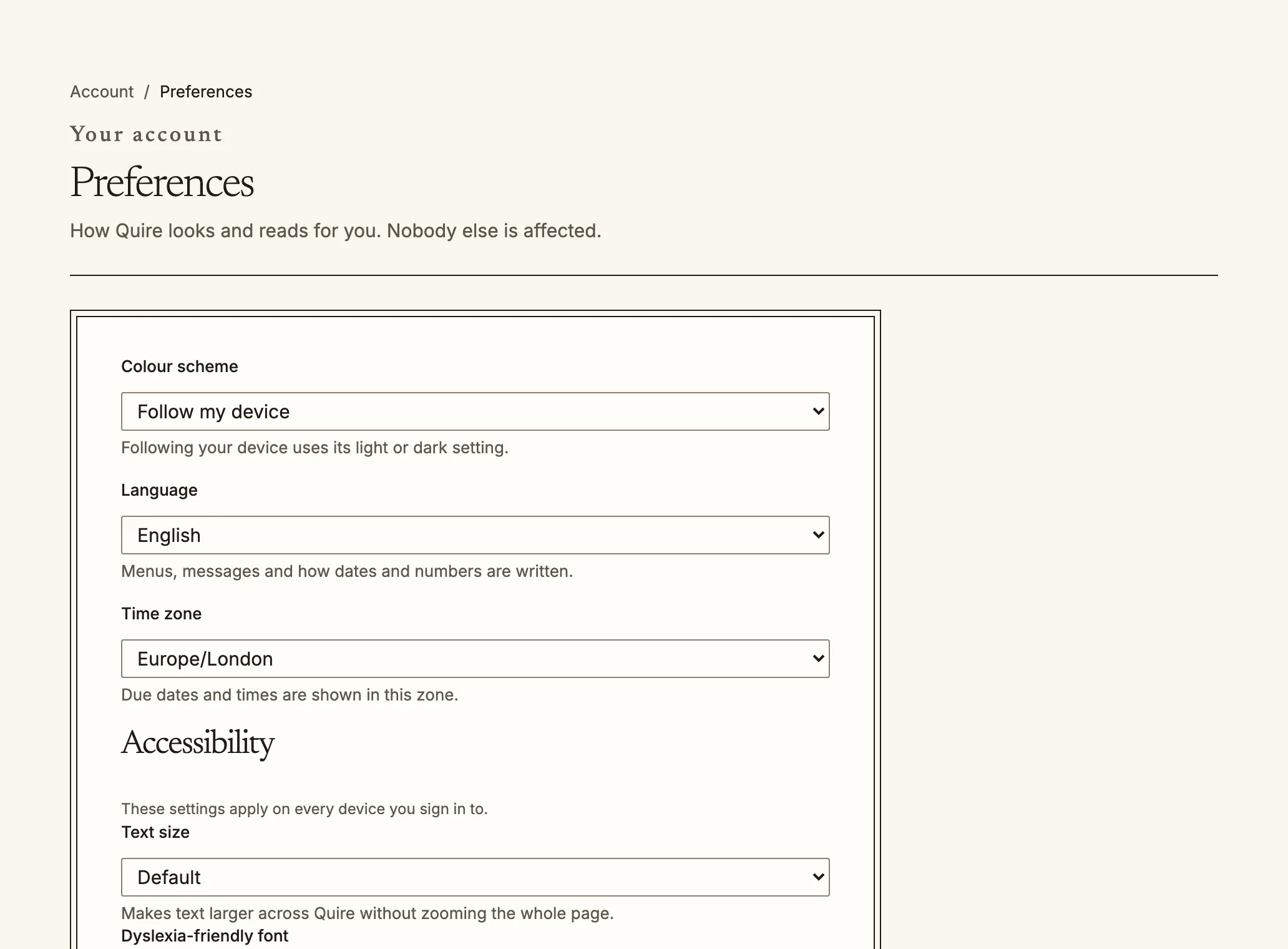
The account menu is at the top right of every page.Preferences: colour scheme, language, time zone and accessibility.
- **Language**: শতাধিক ভাষা থেকে বেছে নিন। বিশটি ভাষার সম্পূর্ণ অনুবাদ আছে; অন্যগুলো menu ও প্রধান screen অনুবাদ করে, বাকি জায়গায় ইংরেজি দেখায়। **machine translated** চিহ্নিত ভাষা স্বয়ংক্রিয়ভাবে অনুবাদ করা হয়েছে; শব্দচয়ন নিখুঁত নাও হতে পারে। আরবি, হিব্রু, ফারসি ও উর্দু ডান থেকে বামে দেখায়।
- **Text size**: Default, Large, Larger অথবা Largest (স্বাভাবিক আকারের দেড় গুণ পর্যন্ত); পৃষ্ঠা zoom না করেও Quire-এর সর্বত্র প্রযোজ্য।
- **Dyslexia-friendly font**: অক্ষরের স্বতন্ত্র আকৃতি ও বেশি ফাঁকযুক্ত typeface।
- **Reduce motion**: device-এর setting যা-ই হোক, নড়াচড়ার বদলে fade ব্যবহার করে।
- **High contrast**: গাঢ়তর লেখা, border ও focus outline।
- **Colour scheme**: light, dark অথবা device-এর মতো।
- **Time zone**: due date ও time এই zone অনুযায়ী দেখায়।
আপনি যে device-এ sign in করেন, সবখানেই এগুলো আপনার সঙ্গে থাকে।
## Keyboard ও screen reader
প্রতিটি পৃষ্ঠার শুরুতে **Skip to main content** link থাকে এবং প্রধান এলাকাগুলো landmark হিসেবে চিহ্নিত (navigation, main content, notification), যাতে screen reader দিয়ে এক এলাকা থেকে অন্যটিতে যাওয়া যায়। Mouse দিয়ে যা করা যায় keyboard দিয়েও সব করা যায়: সরাতে `Tab`, কাজ করতে `Enter` চাপুন।
## Glossary link
Course-এ glossary থাকলে lesson, forum post, quiz question ও summary-তে তার সংজ্ঞায়িত শব্দের link দেখা যেতে পারে। সংজ্ঞা পড়তে link অনুসরণ করুন।
## আপনার তথ্য
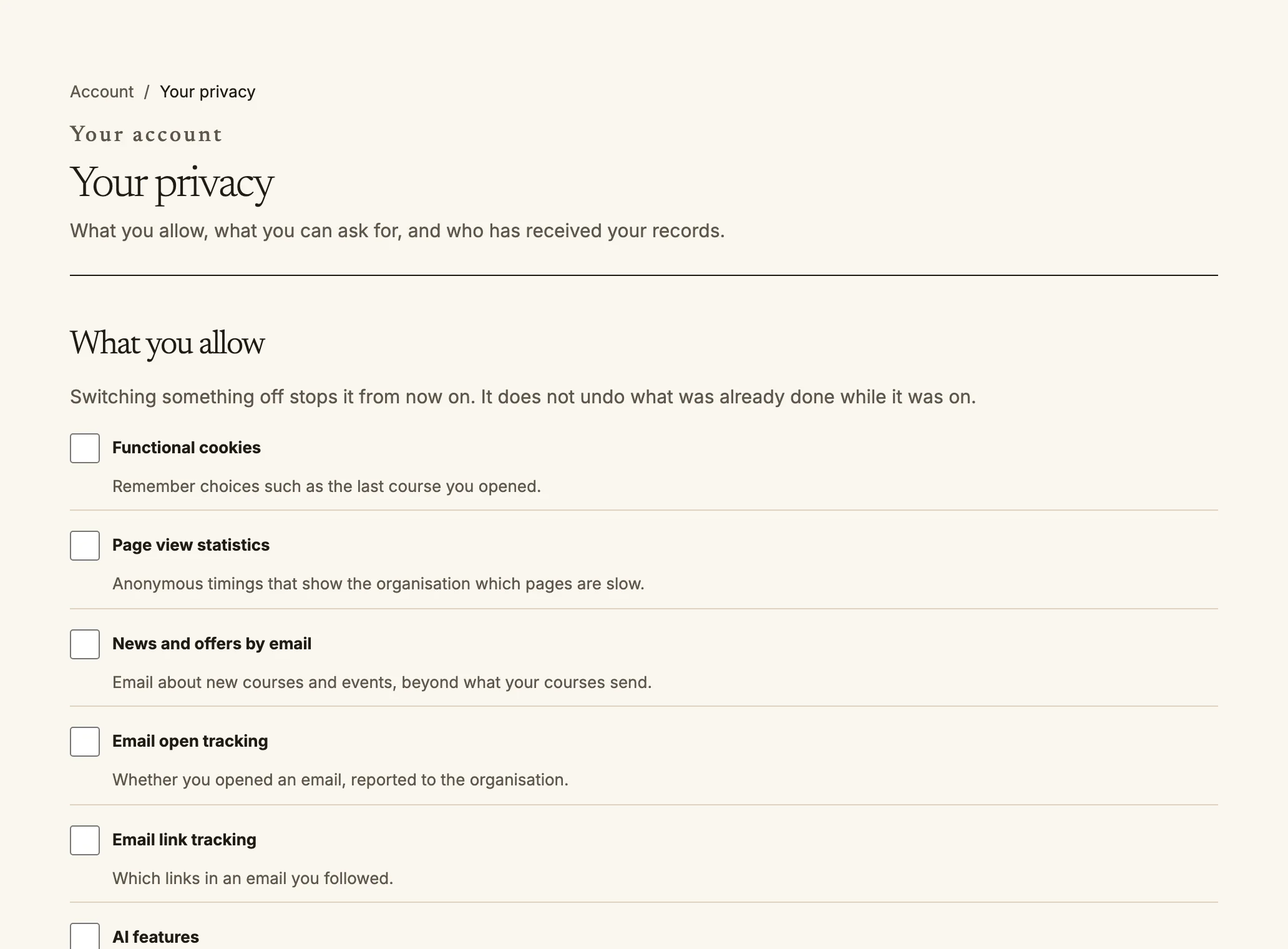
Your privacy: choose what you allow, and ask about your data.
আপনার সম্পর্কে Quire কী রাখবে এবং কতদিন রাখবে তা আপনার প্রতিষ্ঠান নির্ধারণ করে; প্রতিটি পৃষ্ঠার নিচে privacy policy-র link থাকে। `/account/privacy`-তে নিজের তথ্য সম্পর্কেও কাজ করতে পারেন:
- **What you allow**: analytics, marketing ও AI বৈশিষ্ট্যের মতো উদ্দেশ্য বন্ধ করুন। একটি বন্ধ করলে এরপর থেকে তা থামে; চালু থাকাকালে যা করা হয়েছে তা ফিরিয়ে নেওয়া হয় না। সম্মতির বয়সের নিচে থাকা শিক্ষার্থীর guardian সম্মতি না দেওয়া পর্যন্ত এগুলো বন্ধ থাকে।
- **Hide me from the directory**: যাঁরা আপনাকে পড়ান বা প্রশাসন করেন না, তাঁদের মানুষদের তালিকা ও search-এ আপনার নাম ও profile দেখানো হয় না।
- **Ask about your data**: আপনার data-র copy, বহনযোগ্য copy, সংশোধন অথবা account মুছে ফেলার অনুরোধ করুন। অনুরোধ নিশ্চিত করার link Quire আপনাকে email করে; link না খোলা পর্যন্ত কিছু ঘটে না। আপনার প্রতিষ্ঠানের privacy officer অনুরোধ কার্যকর করেন; প্রতিটির অবস্থা ও due date পৃষ্ঠায় দেখা যায়। মুছে ফেলার অনুরোধ নিশ্চিত করার 24 ঘণ্টা পরে কার্যকর হয়; ততক্ষণ তা প্রত্যাহার করতে পারেন। Grade ও certificate-এর মতো প্রতিষ্ঠানকে রাখতে হয় এমন record সংরক্ষিত থাকে, তবে সেগুলোতে আর আপনার নাম থাকে না।
- **Who received your records**: আপনার শিক্ষা-সংক্রান্ত record কখন, কেন প্রতিষ্ঠানের বাইরের কাউকে দেওয়া হয়েছে তার প্রতিটি বিবরণ।
- **AI tutor conversations**: একই পৃষ্ঠার link থেকে কে কথোপকথন পড়েছেন দেখুন।
Source: https://docs.quirelms.com/bn/learner/index.mdx