---
title: "n8n"
description: "Automate Quire with n8n and the Quire community node."
image: "https://docs.quirelms.com/og.png"
---
> Documentation Index
> Fetch the complete documentation index at: https://docs.quirelms.com/llms.txt
> Use this file to discover all available pages before exploring further.
# n8n
The Quire community node for n8n gives you an action node for the REST API
and a trigger node that starts a workflow when something happens in Quire.
It has no runtime dependencies, so it adds nothing to your n8n instance but
itself.
## Install
In n8n, open **Settings**, then **Community nodes**, choose **Install**, and
enter `@quire/n8n-node`. On a self-hosted n8n you can instead run
`npm install @quire/n8n-node` in the n8n user folder and restart.
## Connect
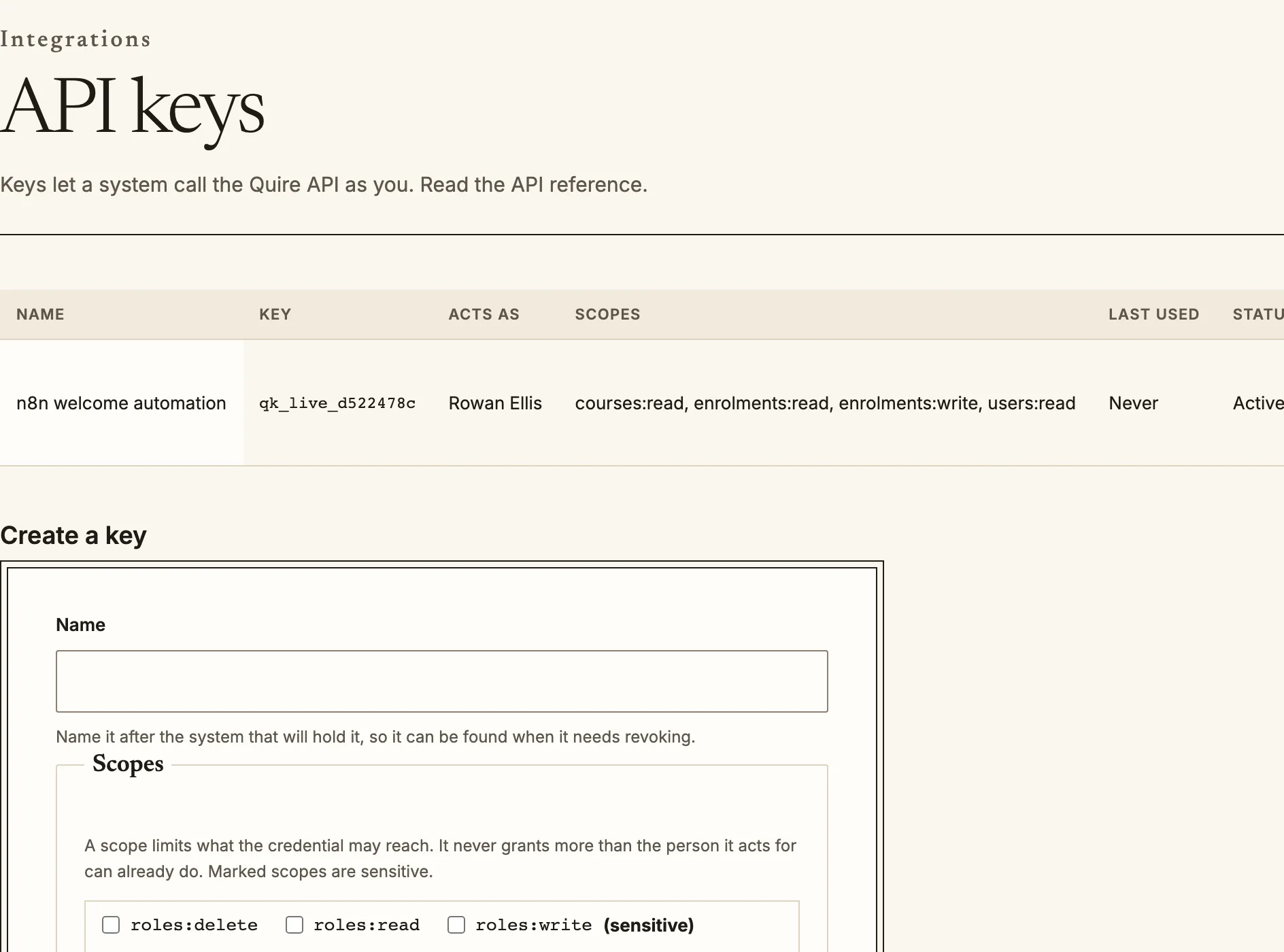
Create a key at /admin/integrations/api-keys and paste it into the Quire credential in n8n.
Create a credential. Two kinds are offered:
- **Quire API Key**: **Base URL** is your organisation's address with no
trailing slash, such as `https://acme.quirelms.com`. **API Key** is a key an
administrator created at `/admin/integrations/api-keys`, starting
`qk_live_`. Give it only the scopes the workflow needs.
- **Quire OAuth2**: for workflows that should act as a particular person.
Register an OAuth client at `/admin/integrations/oauth-clients` with n8n's
redirect address (n8n shows it on the credential), then enter the client
ID, secret and scopes.
## Actions
The **Quire** node covers users, courses, enrolments, groups, completions,
grades, certificates, submissions, quiz attempts, programs, orders, email and
organisations. Each offers list, get, create, update and delete where the API
does, and upsert by external ID, which is what you want for a sync: run the
same workflow twice and nothing is duplicated.
The operations are generated from Quire's OpenAPI document, so they match
the [API reference](https://docs.quirelms.com/api/) field for field. Every operation can also be
used as a tool by an n8n AI agent; its description comes from the API
reference.
Lists return every page by default. Turn off **Return All** and set a limit
for large organisations.
## Trigger
Add the **Quire Trigger** node, pick the credential, and choose the
**Events**: an event by name such as `enrolment.created`, a whole area such
as `course.*`, or everything. When you activate the workflow, the node
creates a webhook subscription in Quire for n8n's address; when you
deactivate it, the subscription is removed.
Each delivery's signature is checked before the workflow runs. A delivery
that does not verify is dropped with a node error, so a forged request
cannot start your workflow. The event's `data` carries identifiers; add a
Quire node after the trigger to fetch the full record.
## Example: welcome email on enrolment
1. **Quire Trigger** on `enrolment.created`.
2. **Quire** node, resource **Users**, operation **Get**, with the user ID
`{{$json.data.user_id}}`.
3. **Quire** node, resource **Courses**, operation **Get**, with
`{{$json.data.course_id}}`.
4. Your email or chat node, using the person's name and the course title.
## Troubleshooting
- **401** on every call: the Base URL and the key belong to different
organisations, or the key was revoked.
- **403** on one operation: the key lacks that scope. Add it at
`/admin/integrations/api-keys`.
- The trigger never fires: n8n's webhook address must be reachable from
Quire over HTTPS. Check the subscription's delivery log at
`/admin/webhooks`.
Source: https://docs.quirelms.com/integrations/n8n/index.mdx