---
title: "Learner guide"
description: "Find your courses, study offline, and make Quire comfortable to read."
image: "https://docs.quirelms.com/og.png"
---
> Documentation Index
> Fetch the complete documentation index at: https://docs.quirelms.com/llms.txt
> Use this file to discover all available pages before exploring further.
# Learner guide
Use the address and sign-in details your organisation gave you. If a course or activity is missing, contact your teacher or administrator to check your enrolment and access.
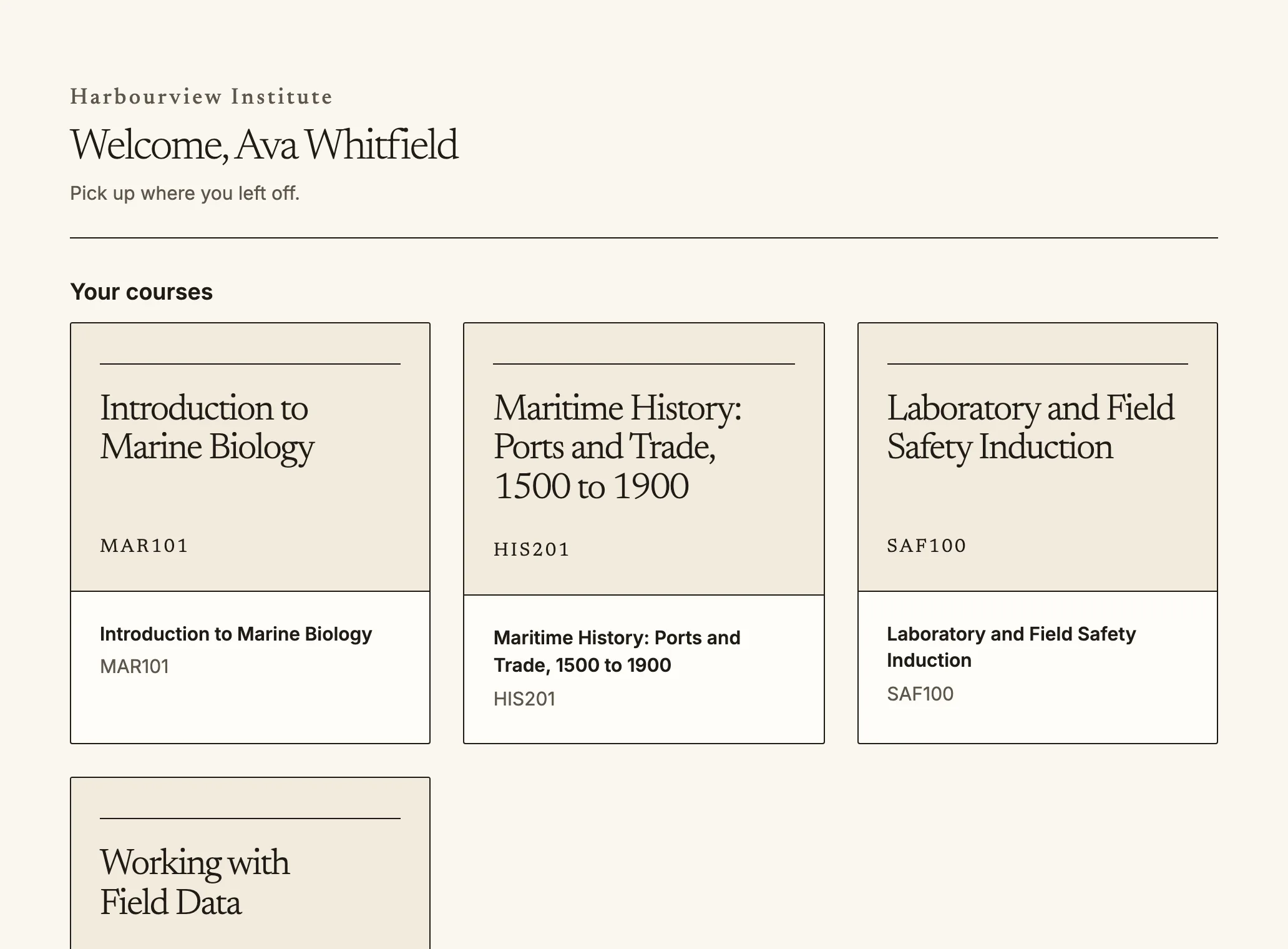
The dashboard lists your courses and where you left off.
Quire is where your courses live. Sign in at your organisation's address,
and your dashboard (`/dashboard`) shows what is due, what is new and where you
left off.
## Your courses
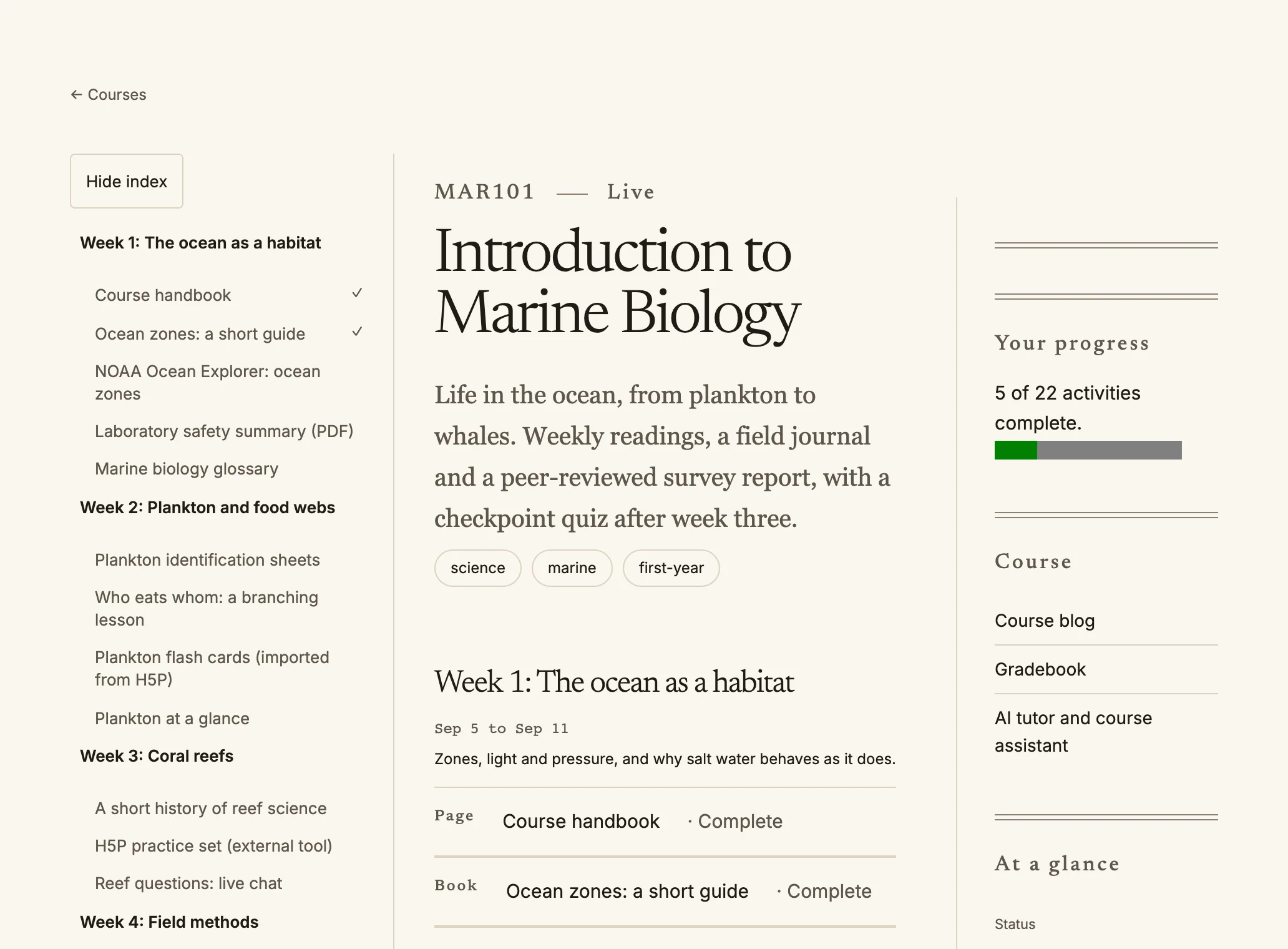
Inside a course: the index on the left, your progress on the right.
- **My courses** (`/my/courses`) lists every course you are enrolled in, with
your progress.
- Inside a course, the course index on the left (on the right in right to
left languages) takes you to any section. Ticks show what you have
completed.
- A course another organisation has shared with yours is listed here too, marked
**Shared by** that organisation. You work through it as in any course, and your
attempts and grades are kept by your own organisation.
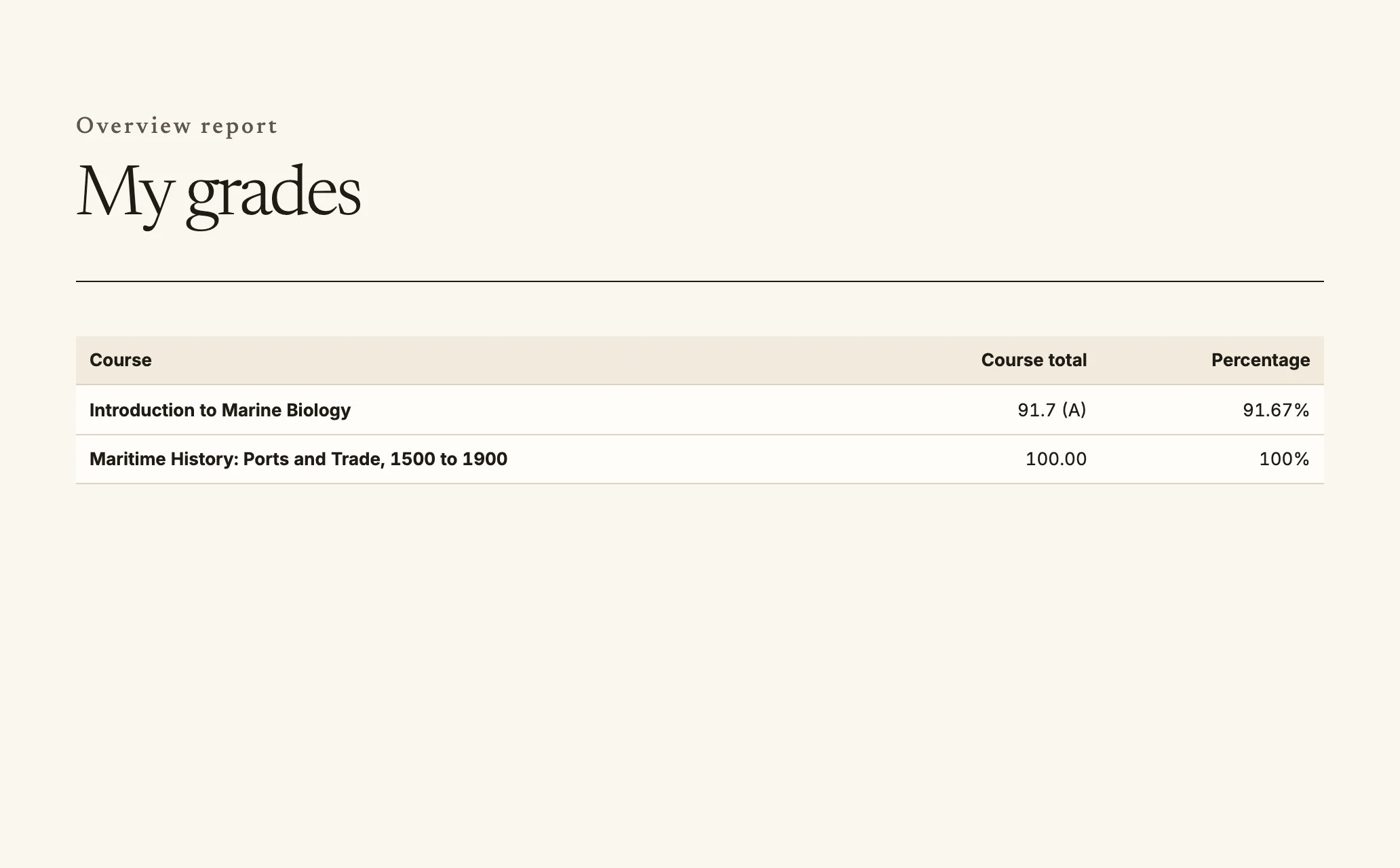
- **Grades** (`/my/grades`) shows your marks and feedback once your teacher
has released them.
- **Certificates** (`/my/certificates`) and **badges** (`/my/badges`) keep
what you have earned, with a link anyone can use to check it.
My grades shows one row for each course.
## The AI tutor
If your organisation offers the AI tutor, each course that has one has an **AI
tutor** page where you ask about the course and get answers from material you can
open, with its sources. Before your first question you accept your organisation's AI
use policy. Answers can be wrong, so check them against the course.
Teachers of the course can read tutor conversations. Every time one does, it is
recorded, and you see it: a conversation says that a member of staff has read it,
who, and when, and **AI tutor access log** (`/my/ai-privacy`, also linked from your
privacy page) lists every read. Conversations are kept for the period your
organisation sets and then deleted, and you can delete one yourself after the
course ends.
## Offline
You can download a course and study it without a connection, on a train or
anywhere the signal drops.
1. Open the course and choose **Download for offline**. Quire saves the
course's pages and files on this device.
2. Study as usual. A banner tells you when you are offline.
3. Work you do offline, such as ticking items on a checklist, is kept on the
device and sent when you are back online. `/offline` lists anything
waiting, lets you send it again, and shows anything that could not be sent
and why, with **Retry** and **Discard**.
To free space, choose **Remove from this device** at `/offline`. Signing out removes every
download for your organisation from the device.
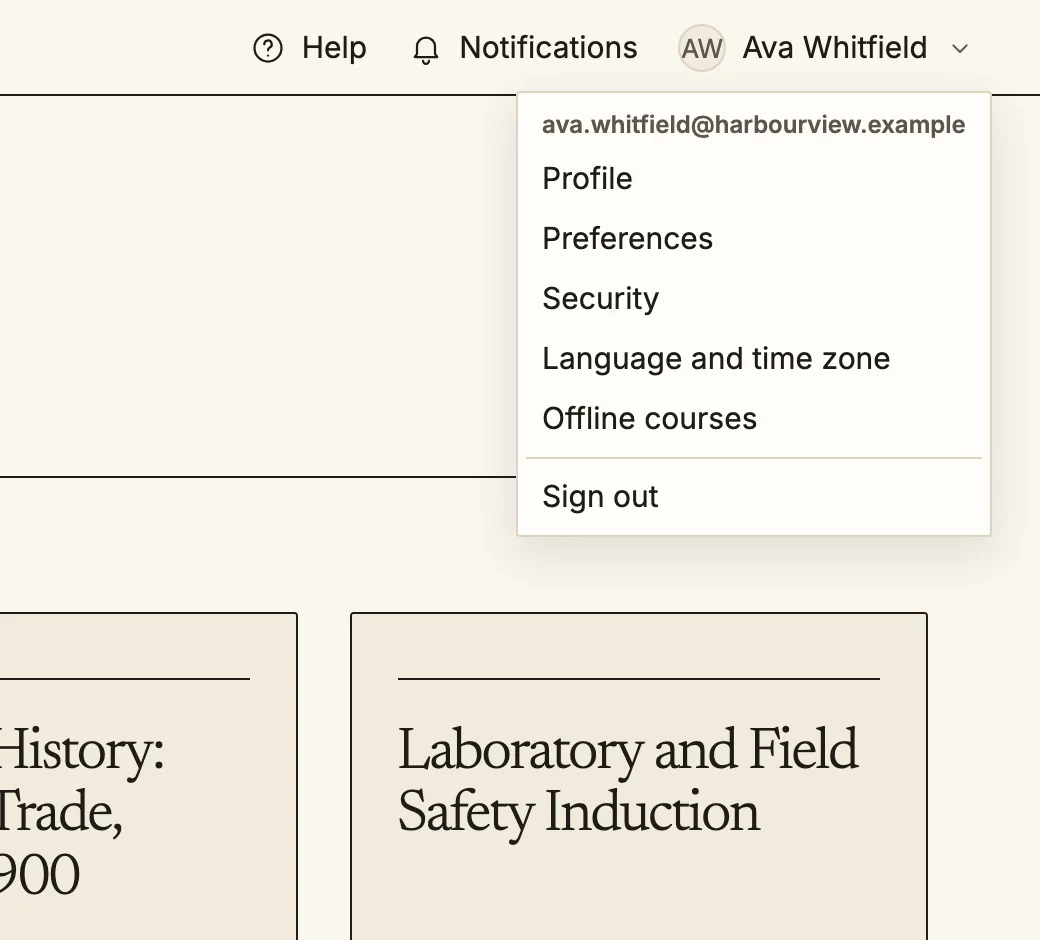
On a phone or tablet you can also **install** Quire from the account menu, so
it opens like an app.
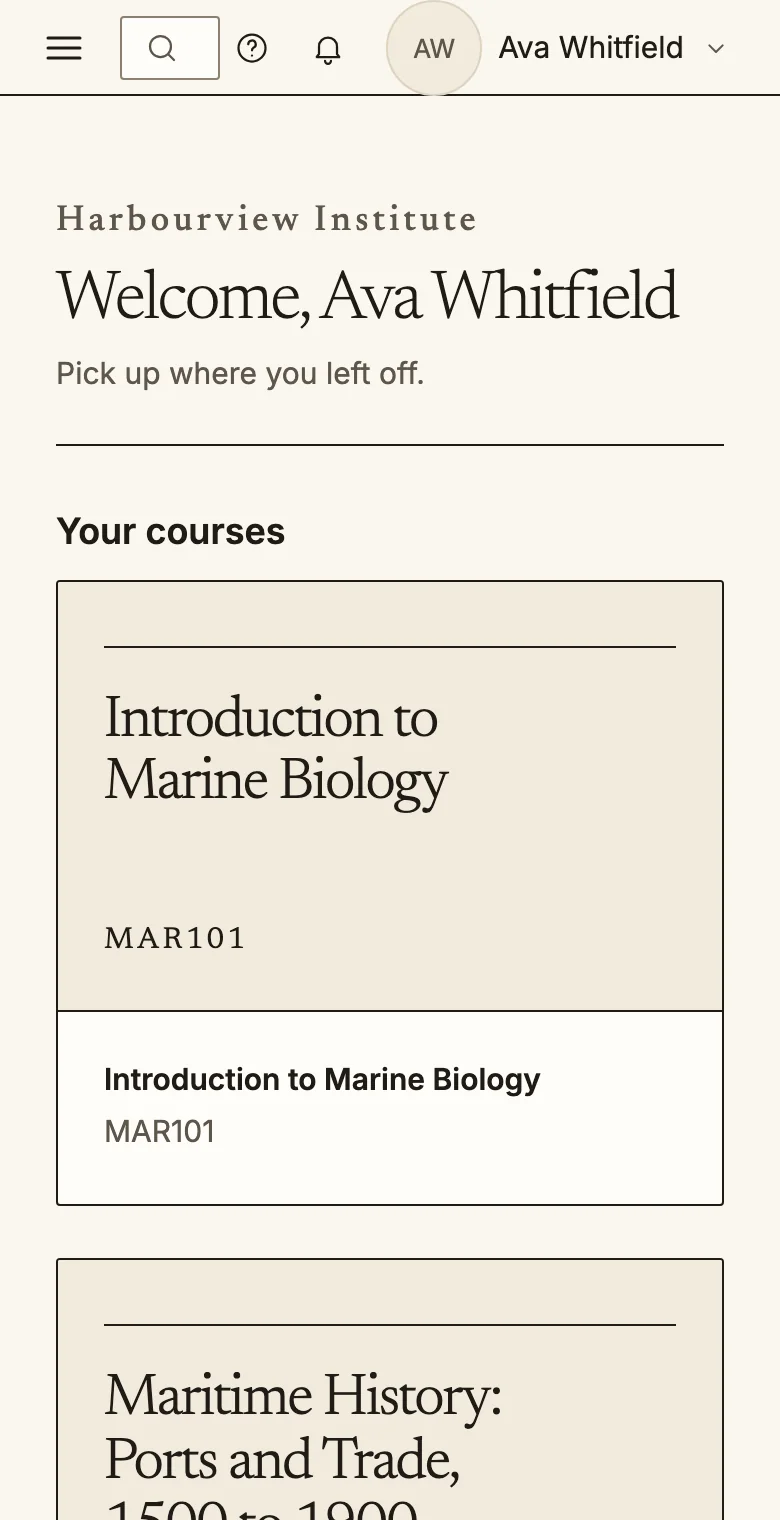
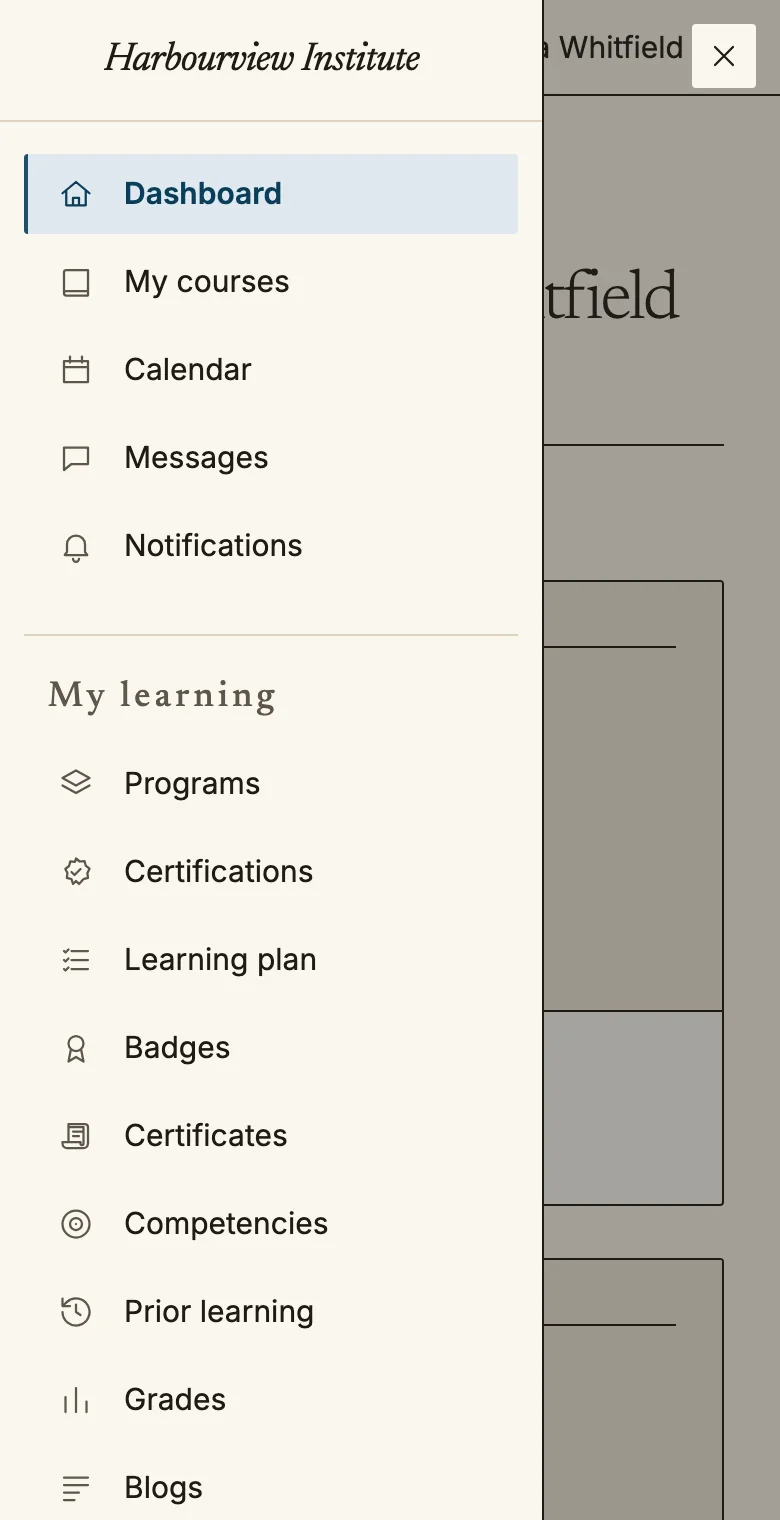
On a phone the navigation opens from the menu button at the top left.
## Making Quire comfortable
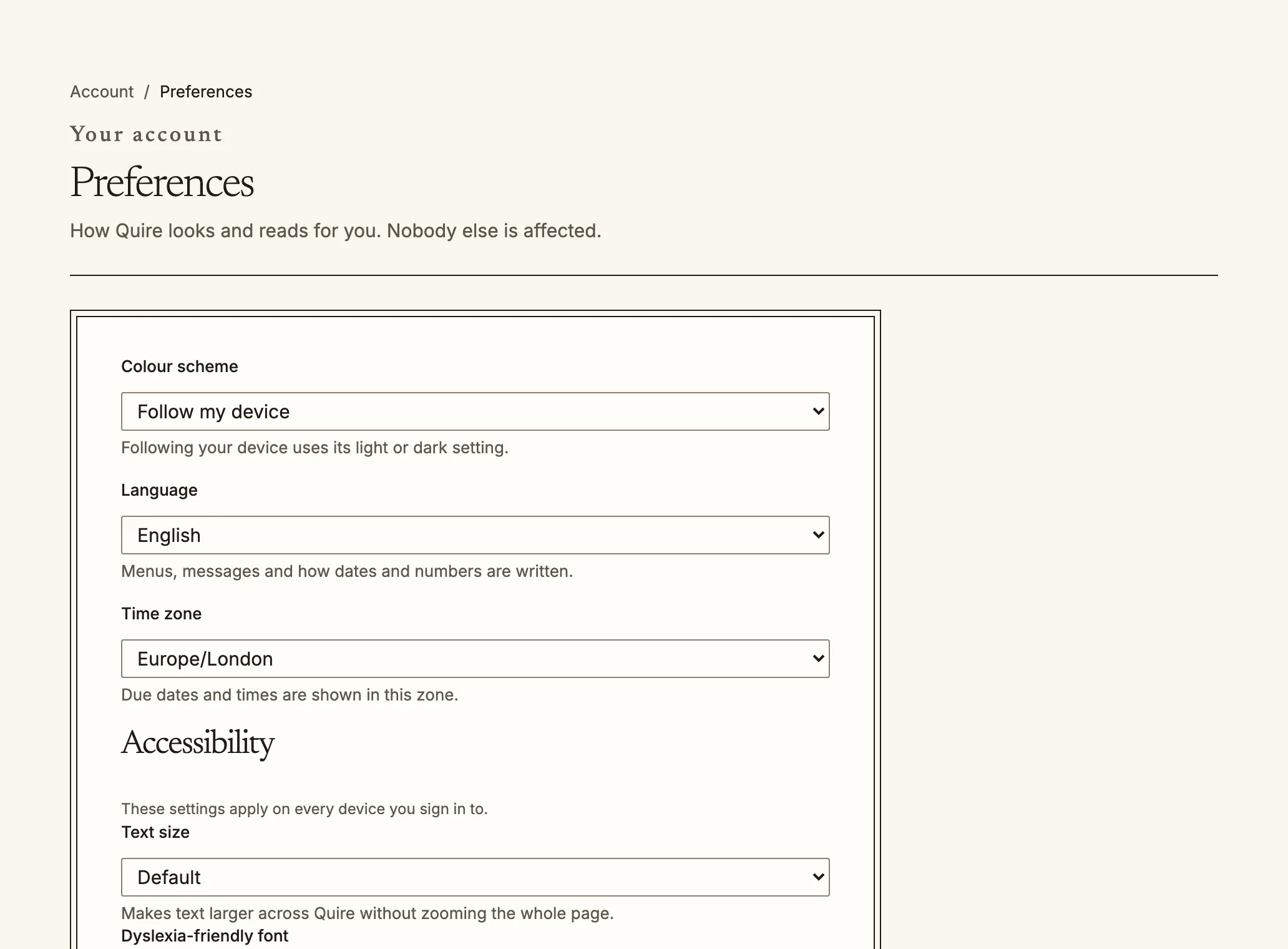
Open **Preferences** from the account menu (`/account/preferences`).
The account menu is at the top right of every page.Preferences: colour scheme, language, time zone and accessibility.
- **Language**: choose from more than a hundred. Twenty are translated in full;
the others translate the menus and main screens and show English elsewhere.
Languages marked **machine translated** were translated automatically; the
wording may be imperfect.
Arabic, Hebrew, Persian and Urdu display right to left.
- **Text size**: Default, Large, Larger or Largest (up to one and a half
times the usual size), everywhere in Quire without zooming the page.
- **Dyslexia-friendly font**: a typeface with distinct letter shapes and
wider spacing.
- **Reduce motion**: replaces movement with fades, whatever your device is
set to.
- **High contrast**: stronger text, borders and focus outlines.
- **Colour scheme**: light, dark, or following your device.
- **Time zone**: due dates and times are shown in this zone.
These follow you to every device you sign in on.
## Keyboard and screen readers
Every page starts with a **Skip to main content** link, and the main areas are
marked as landmarks (navigation, main content, notifications) so a screen
reader can jump between them. Everything you can do with a mouse you can do
with a keyboard; press `Tab` to move and `Enter` to act.
## Glossary links
If a course has a glossary, a term it defines can be a link wherever the course text
mentions it, in lessons, forum posts, quiz questions and summaries. Follow it to the
definition.
## Your data
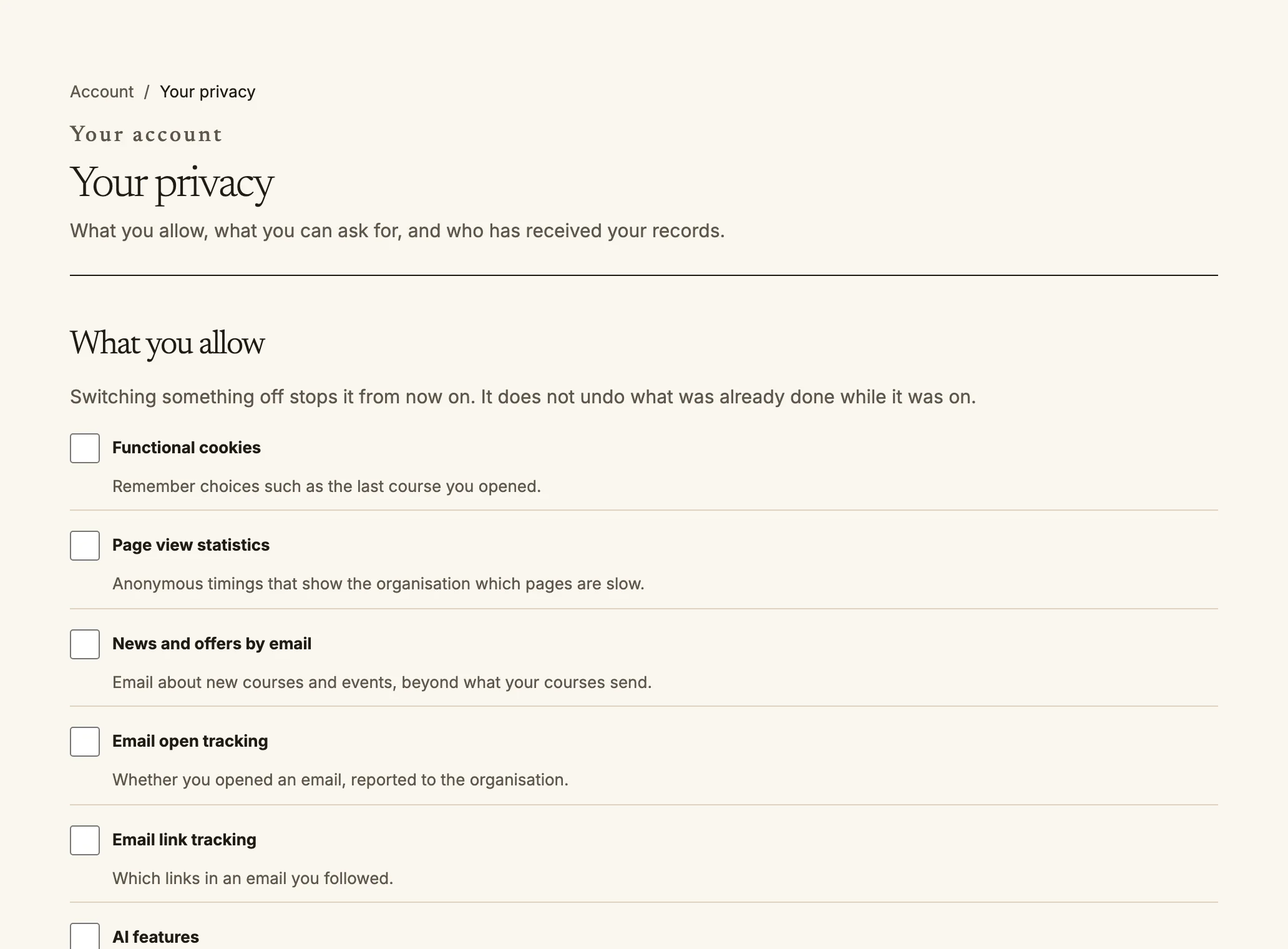
Your privacy: choose what you allow, and ask about your data.
Your organisation decides what Quire keeps about you and for how long, and
its privacy policy is linked at the foot of every page. You can also act on your
own data at `/account/privacy`:
- **What you allow**: switch off purposes such as analytics, marketing and AI
features. Switching one off stops it from then on and does not undo what was done
while it was on. A learner under the age of consent has these off until a guardian
agrees.
- **Hide me from the directory**: your name and profile are not shown in people lists
and search to anyone who does not teach or administer you.
- **Ask about your data**: request a copy of your data, a portable copy, a
correction, or deletion of your account. Quire emails you a link to confirm the
request, and nothing happens until you open it. Your organisation's privacy officer
carries it out, and the page lists each request with its state and due date. A
deletion waits 24 hours after you confirm, and you can withdraw it until then.
Records the organisation must keep, such as grades and certificates, stay but no
longer name you.
- **Who received your records**: every time your education record was given to
someone outside the organisation, and why.
- **AI tutor conversations**: who has read them, from the link on the same page.
Source: https://docs.quirelms.com/learner/index.mdx