---
title: "Teacher guide"
description: "Build courses in Quire, write pages together, and set and mark work."
image: "https://docs.quirelms.com/og.png"
---
> Documentation Index
> Fetch the complete documentation index at: https://docs.quirelms.com/llms.txt
> Use this file to discover all available pages before exploring further.
# Teacher guide
Start with a course where your role allows editing. Work through the course structure first, then add activities and decide how learners will receive feedback.
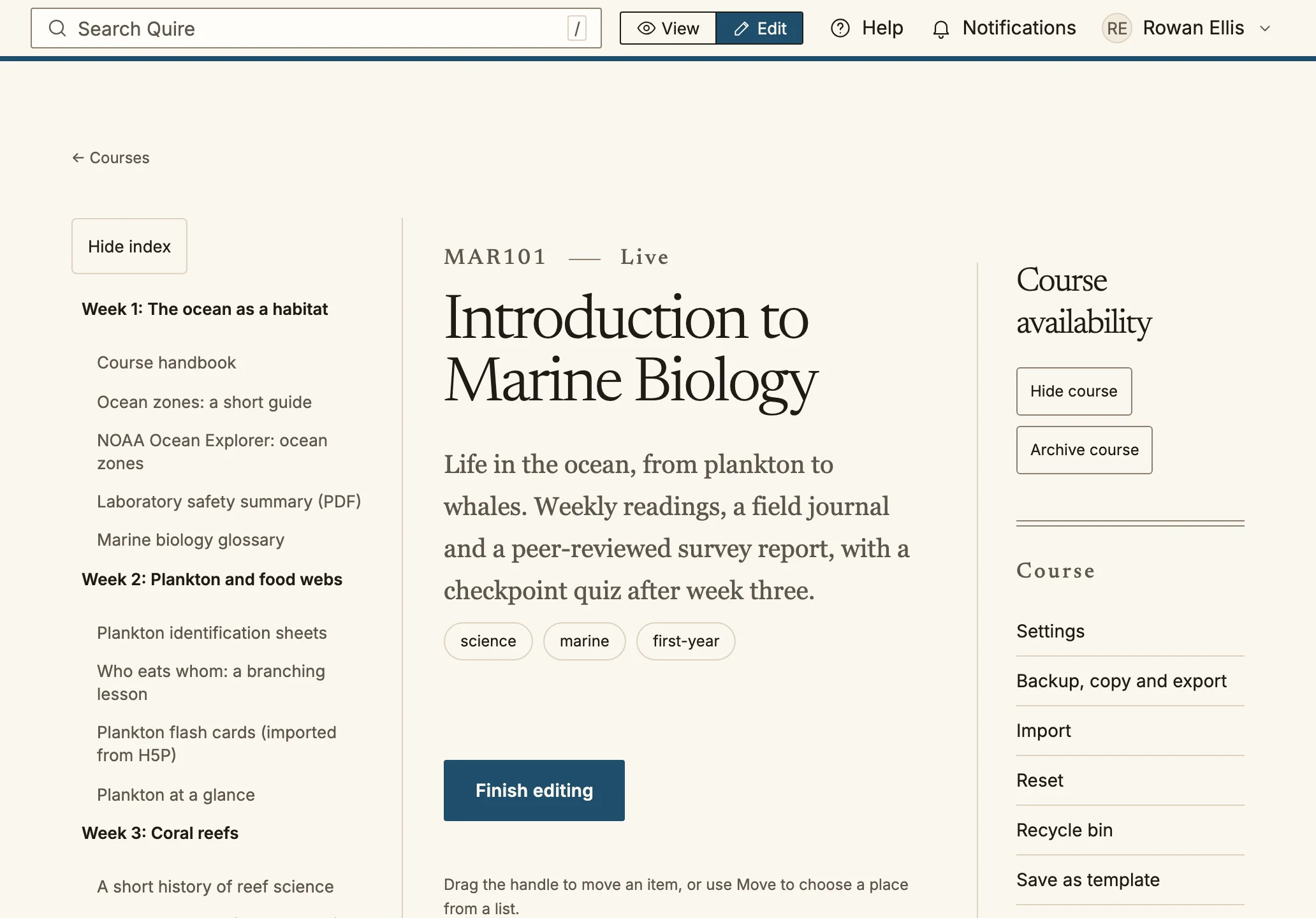
Choose Edit in the top bar to change a course in place. View shows it as learners see it.
You build courses, write their pages, set work and mark it. Your courses are
listed at `/teaching`.
## A course
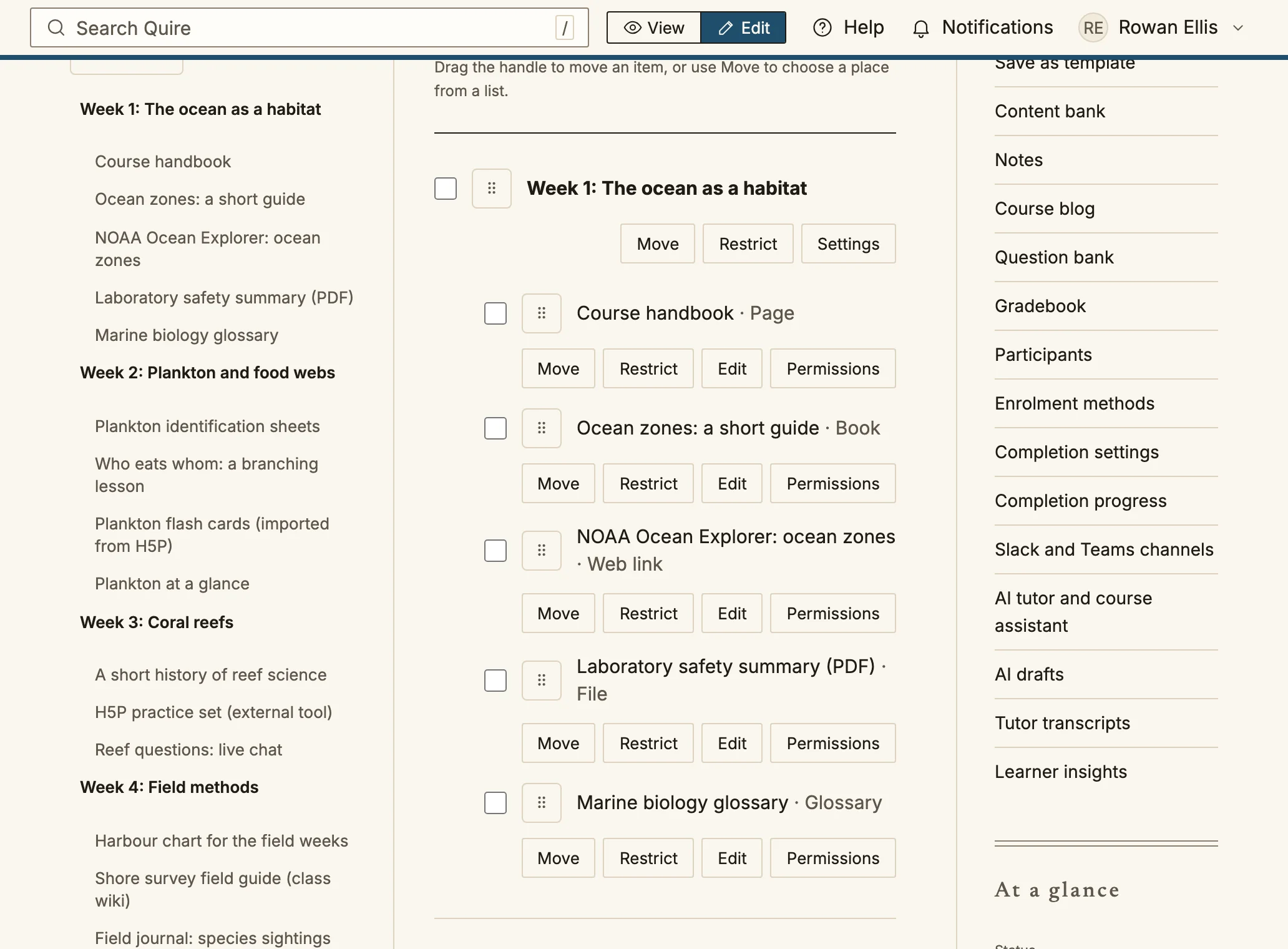
In edit mode every section and activity can be moved, restricted, edited and given permissions.
A course has sections, and each section holds activities: pages, files,
quizzes, assignments, forums, SCORM packages, LTI tools and more. From the
course page:
- **Add an activity**: choose the section, then the kind of activity. Every
activity can have a due date, completion conditions and restrictions, such
as "only after the previous quiz is passed".
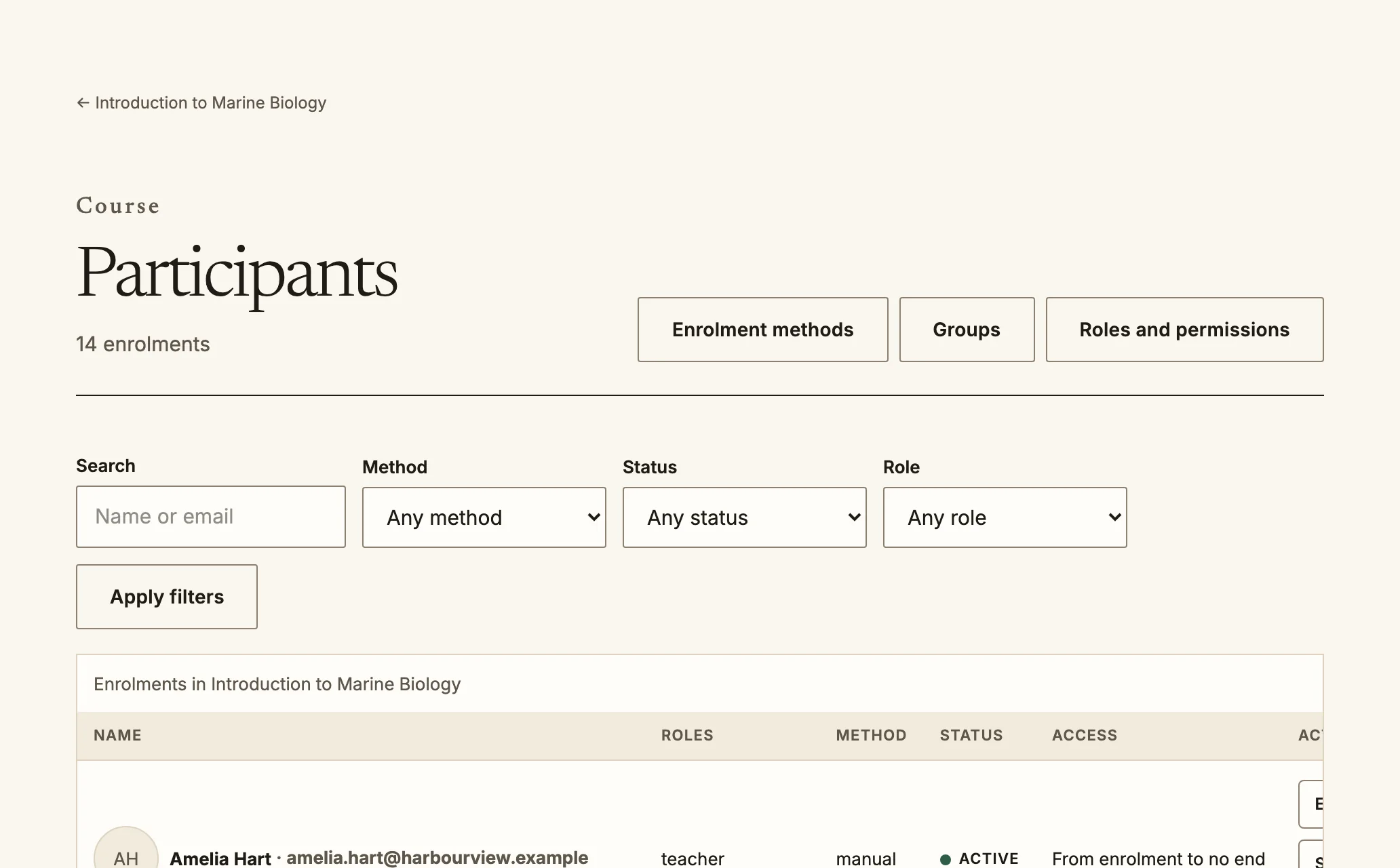
- **Participants** (`/courses//participants`): who is enrolled and in
which role. **Enrolment methods** decides how people join: added by you,
self-enrolment with an optional key, a cohort, or payment.
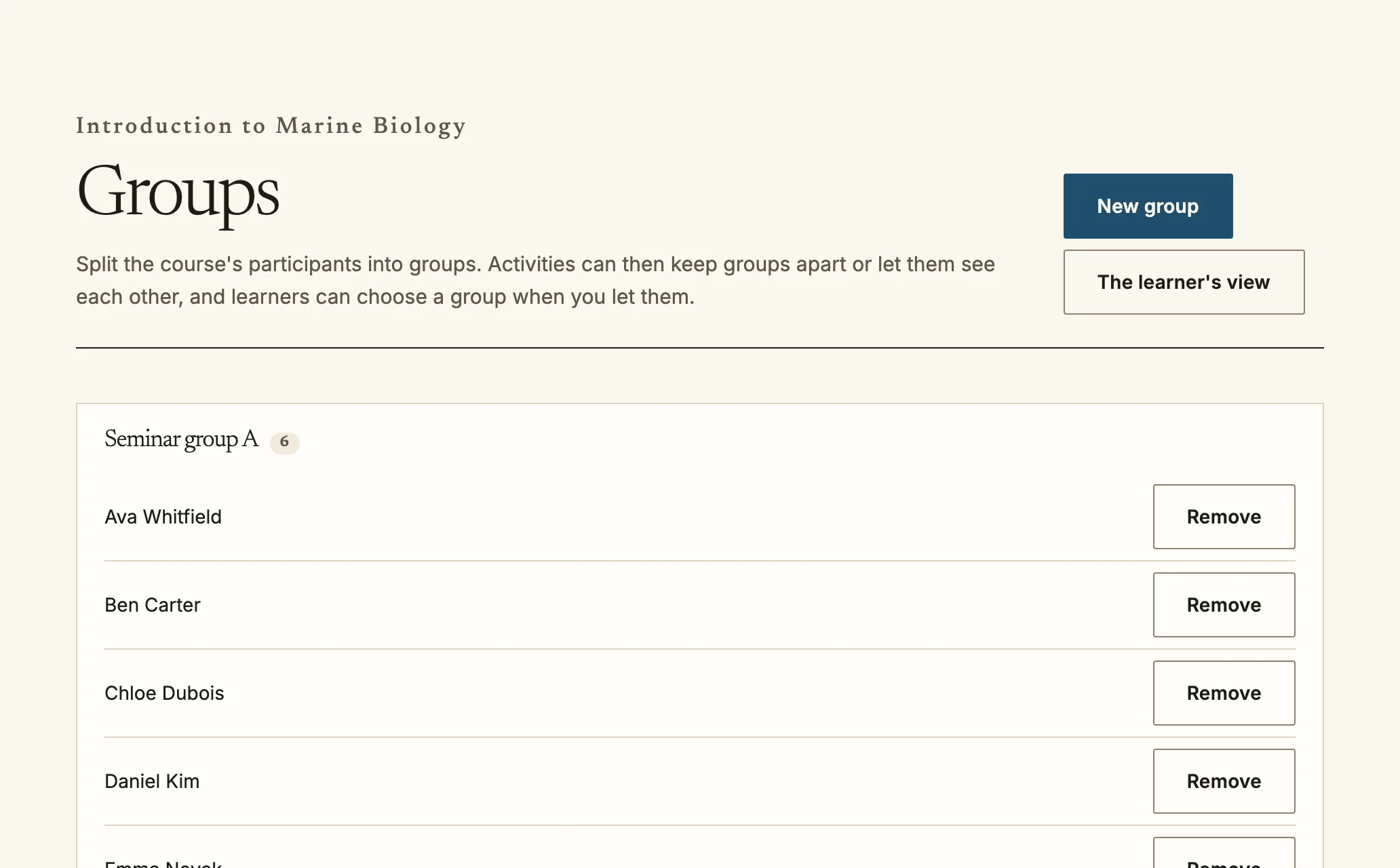
- **Groups** (`/courses//groups`): split a course so each group sees
its own forum threads and submissions.
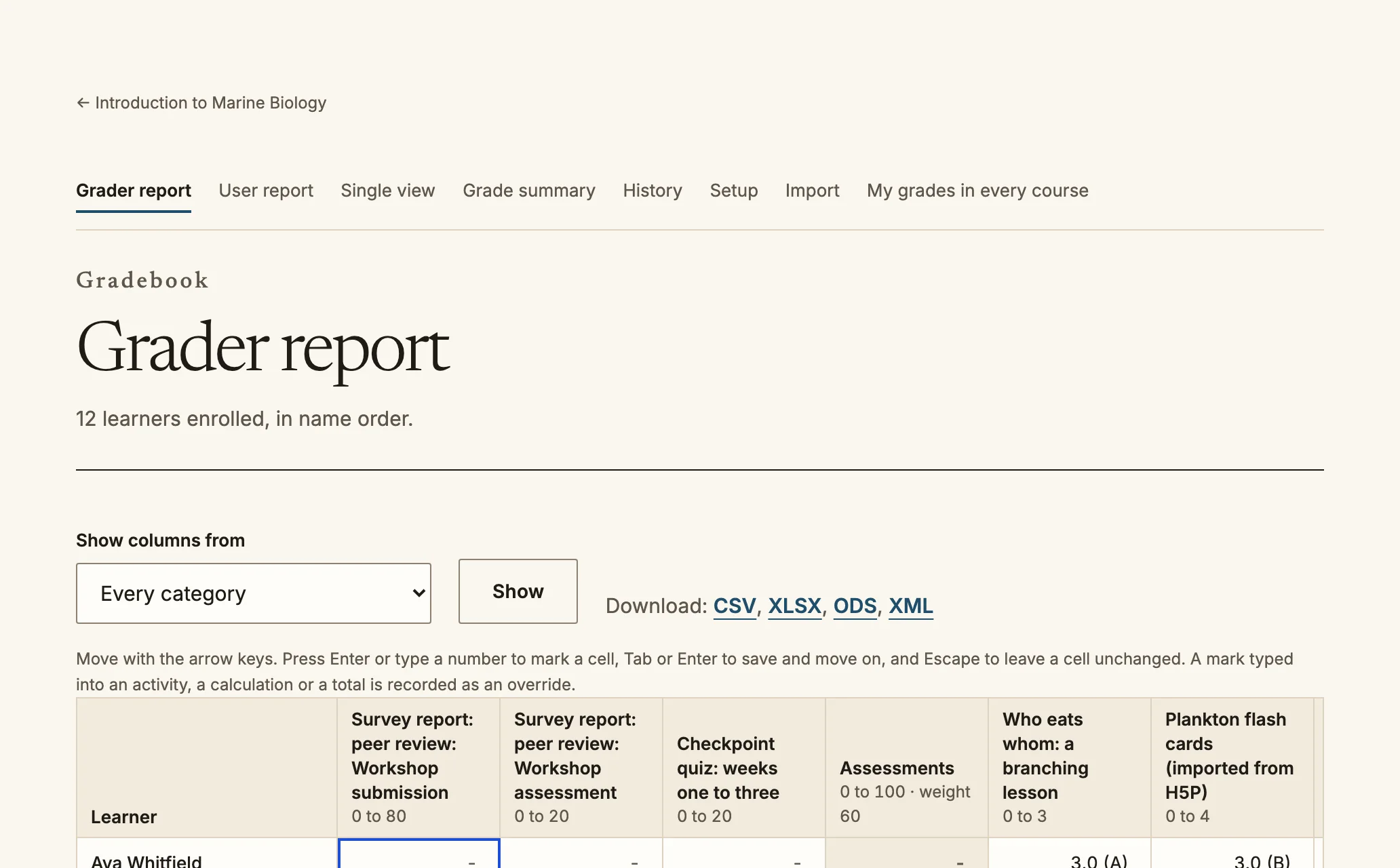
- **Gradebook** (`/courses//gradebook`): every graded activity as a
column. Set weights and categories under **Setup**, see one learner's
grades under **User**, and import or export a spreadsheet.
- **Completion**: the conditions that make the course complete, which drive
certificates and reports. Completion is recorded and reported for the people
your organisation grades, so teachers enrolled in the course do not appear in
progress reports. The gradebook lists the same people.
- **Content bank** (`/courses//content-bank`): keep a file or interactive
content once and reuse it. See the [content bank guide](/teacher/content-bank/).
- **Backup** and **Import**: copy a course, or bring in a Moodle backup.
Participants: who is enrolled, in which role and by which method.Groups split a course so each group can have its own forum threads and submissions.The grader report: every graded activity is a column.
## Writing pages together
Open a page and choose **Edit together**. Everyone editing the page at the
same moment sees each other's cursors, each in their own colour with their
name, and every change appears for the others as it is typed. Nothing is
lost if two people type in the same sentence.
- **Comments**: select text, write under **Comment on the selected text**
and choose **Post comment**. The comment stays attached to that text even
as the words around it are edited; **Show in the document** finds it. If
the text is deleted, the thread says so rather than vanishing. Reply in the
thread, and **Resolve** it when it is done.
- **Versions**: give the page's current state a name and choose **Save
version**. **Restore this version** brings an earlier one back as a new
change, so the restore itself can be undone.
- **Publish to the page**: learners see your changes only when you publish.
Editing together changes the draft, never what learners are reading.
If the collaborative editing service is not running on your installation,
the page says so and you edit it on your own as usual.
## Quizzes
The question bank keeps every version of every question.
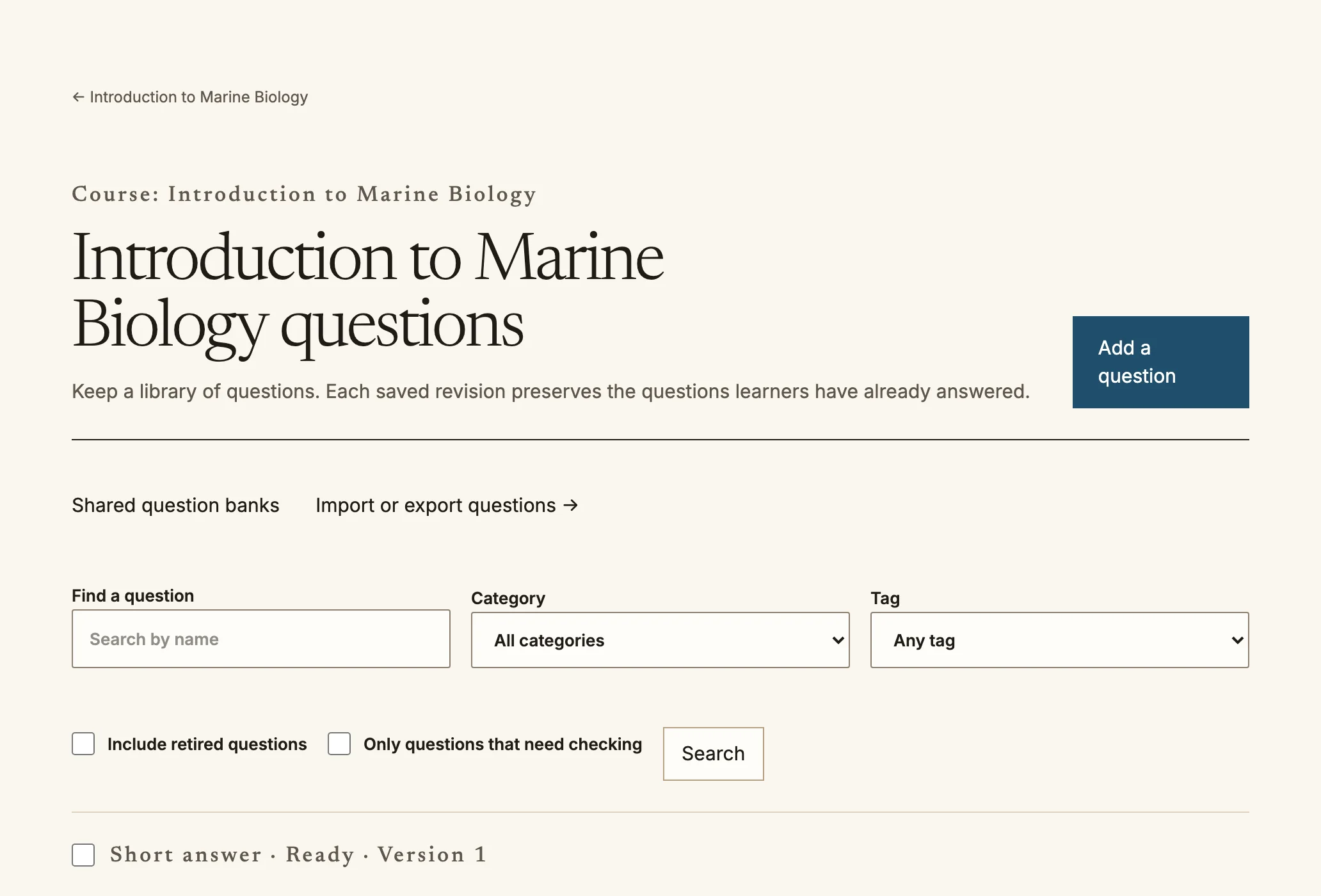
A quiz draws questions from the question bank (`/questions`), where each
question keeps its versions. Build the quiz from fixed questions or random
ones from a category, set the time limit, attempts and review options, then
preview it as a learner would see it. After attempts come in:
- **Quiz grading** marks the questions that need a person, such as essays.
- **Regrade** recalculates attempts after you correct a question.
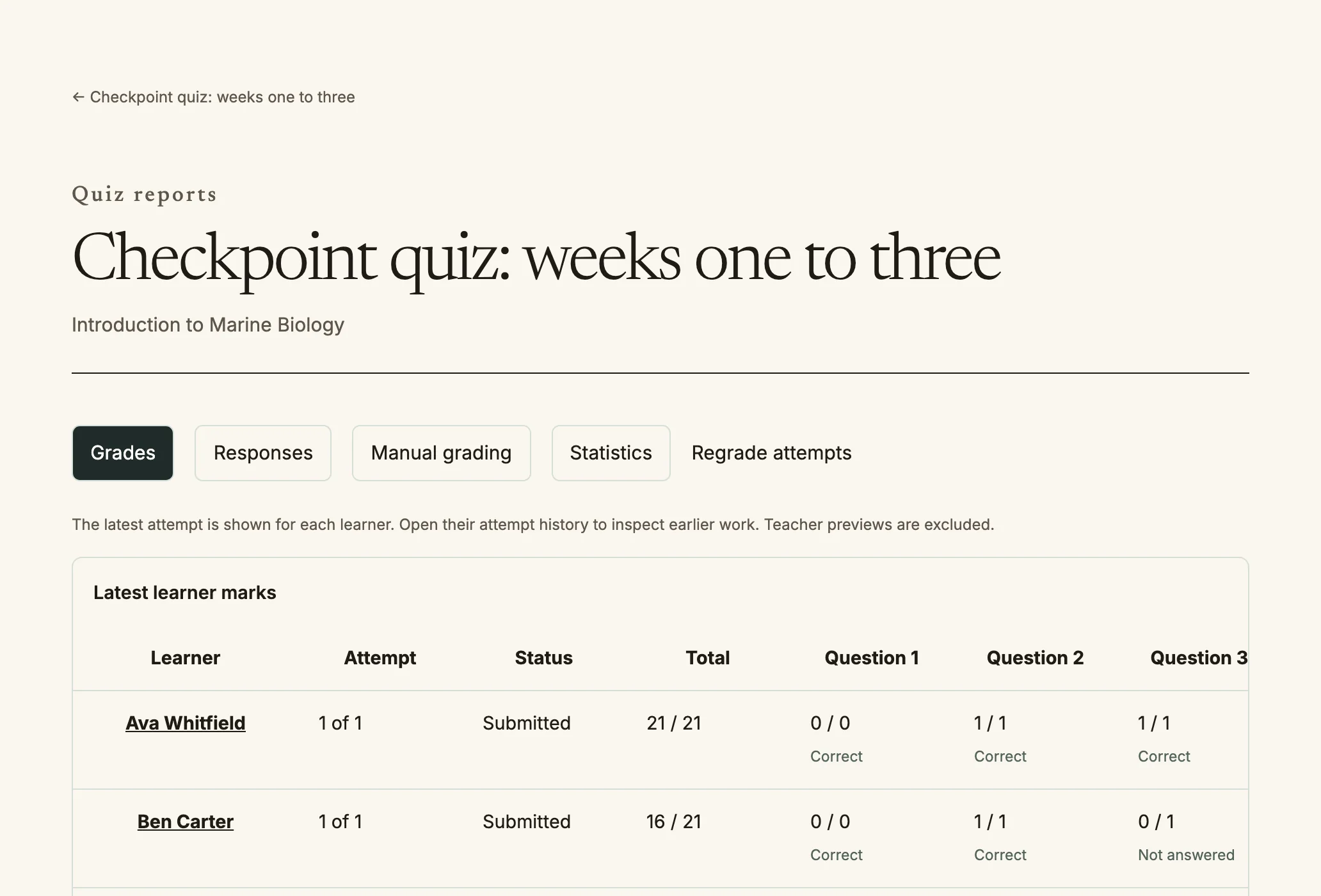
- **Quiz reports** show each question's facility and discrimination, so a
confusing question stands out.
Quiz reports: grades, responses, manual grading and statistics.
### Question statistics in the bank
The same figures follow each question into the question bank. Once learners have
finished attempts that use a question and the quiz statistics have been
calculated, the question's page shows **Usage statistics** for each version:
attempts, facility index, discrimination index, discriminative efficiency and when
it was last used. The figures are kept per version, pooled across every quiz that
used that version, so a reworded question starts again.
A version that looks wrong is marked **Needs checking**, with the reason: low
discrimination means review the question, and negative discrimination means check
the answer key. On the bank's list, choose **Only questions that need checking** to
see them together. A version without enough attempts says there is not enough data
rather than showing a number.
## Assignments
Learners submit files or text. Open **Grading** on the assignment to mark
submissions one after another, annotate a submitted PDF in the browser, use
a rubric or marking guide, and give feedback. Extensions and overrides are
per learner or per group. Marks can stay hidden until you release them all
together.
## Glossary
A glossary holds the terms a course writes together. An entry can be linked
wherever course text mentions its concept or one of its other words: tick **Link
this concept wherever course text mentions it**, and choose whether the match
ignores capital letters and whether it matches whole words only. Teachers approve
entries before others can read them, and a glossary can be imported and exported as
CSV.
Learners see the links wherever they read course text: lesson pages, forum posts,
the introductions of assignments, wikis, databases, chats, glossaries, interactive
activities and workshops, workshop criteria, quiz question text in an attempt, and
course and section summaries. The link is
added when the page is shown and never saved, so editing a page does not leave links
behind in it. A glossary entry is not linked to itself. If a course has too many
auto-linked entries, links are not shown and the glossary says to turn auto-linking
off for glossaries that do not need it.
## SCORM and other packages
A SCORM or AICC activity delivers a SCORM 1.2, SCORM 2004 (2nd, 3rd or 4th edition)
or AICC package. SCORM 2004 packages run with their own sequencing and navigation
rules, so what a learner can open next, and what stays unavailable until earlier
parts are complete, follows the package. The player shows **Contents**,
**Previous** and **Continue**, **Save and leave**, **Exit**, and **Start the package
over** to begin a fresh attempt. Set the attempts allowed, which attempt grades and
how each attempt is scored under the activity's settings. The package's own report
shows each learner's attempts and results.
## More activity types
- **Appointments** (scheduler): after a meeting, record on the scheduler page
whether the learner attended, a grade on points or a scale, a note only staff can
read and a note the learner can read. The grade goes to the gradebook as the best
or the mean of their appointments, and completion can require an attended
appointment.
- **Attendance**: create sessions, repeat them every so many days or weeks until a
date, edit statuses (hide one that has been used rather than deleting it), and
download the report as CSV, XLSX or ODS.
- **Database**: save a database's fields and templates as a preset, share it with
the organisation's other courses, apply it to another database, and export or
import presets in Moodle's preset format or as Quire JSON. An imported Moodle
preset reports what Quire does not keep, such as header, footer and script
templates.
- **Feedback surveys**: published instruments such as ATTLS and COLLES, including
COLLES asked twice, preferred and actual, with the gap between them reported.
## Shared courses
An organisation can share a course with another for use. If you teach in the
organisation that takes it up, the course appears in your own course list, in the
category **Shared with us**, and is an ordinary course of yours: you can enrol
learners, mark their work and see them in your gradebook. Its quizzes, SCORM
packages and other activities run as they do in any course. You can edit or delete
activities in your copy. When the owner publishes a new version, activities they have
added appear in your copy, and the activities you already have are left as they are.
Forums, wikis, chats, workshops and databases are closed in such a course unless both
organisations have agreed to open them. See
[sharing between organisations](/admin/sharing/).
## Offline learners
Learners can download a course to study without a connection (see the
[learner guide](/learner/#offline)). What they tick off while offline is
sent when they reconnect. If you changed the course in the meantime, Quire
keeps the learner's work and tells them what changed.
## AI tutor transcripts
If your organisation uses the AI tutor, you can open learners' conversations at
`/courses//transcripts`. Opening one is recorded, and the learner sees that
a member of staff read it, who, and when. Read one when you have a teaching reason
to.
## Language and accessibility
Write in your organisation's language. Quire's own labels and buttons appear
in each learner's chosen language, right to left for Arabic, Hebrew, Persian
and Urdu. Add alternative text to every image and caption to every video:
Quire asks for both when you upload.
Source: https://docs.quirelms.com/teacher/index.mdx