---
title: "学习者指南"
description: "查找您的课程、离线学习,并调整 Quire 的阅读体验。"
image: "https://docs.quirelms.com/og.png"
---
> Documentation Index
> Fetch the complete documentation index at: https://docs.quirelms.com/zh-Hans/llms.txt
> Use this file to discover all available pages before exploring further.
# 学习者指南
请使用组织提供的网址和登录信息。如果找不到某门课程或活动,请联系教师或管理员,确认您的选课和访问权限。
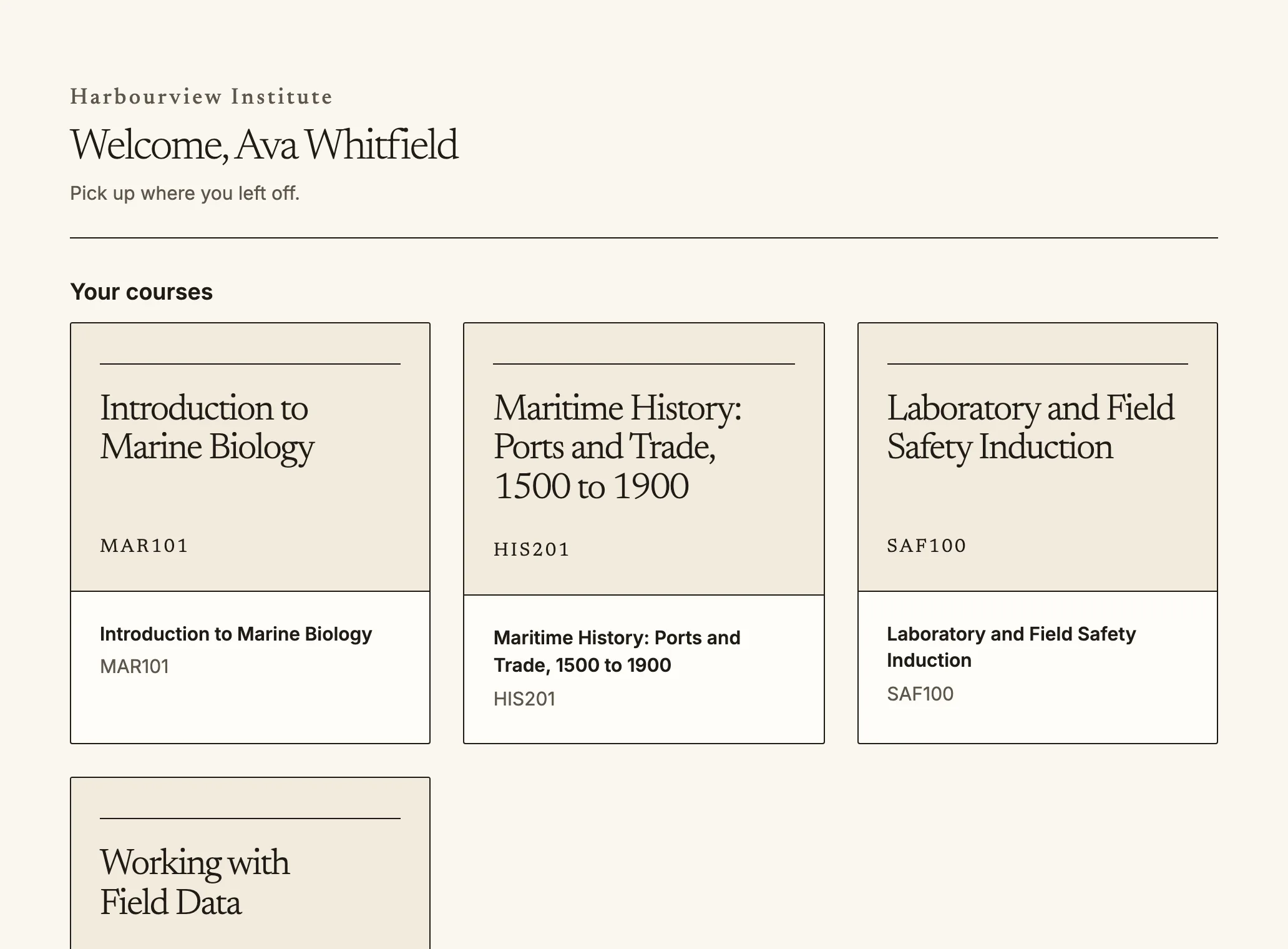
The dashboard lists your courses and where you left off.
Quire 是您的课程平台。请在组织的网址登录;您的仪表板(`/dashboard`)会显示待完成事项、新内容以及您上次学习的位置。
## 您的课程
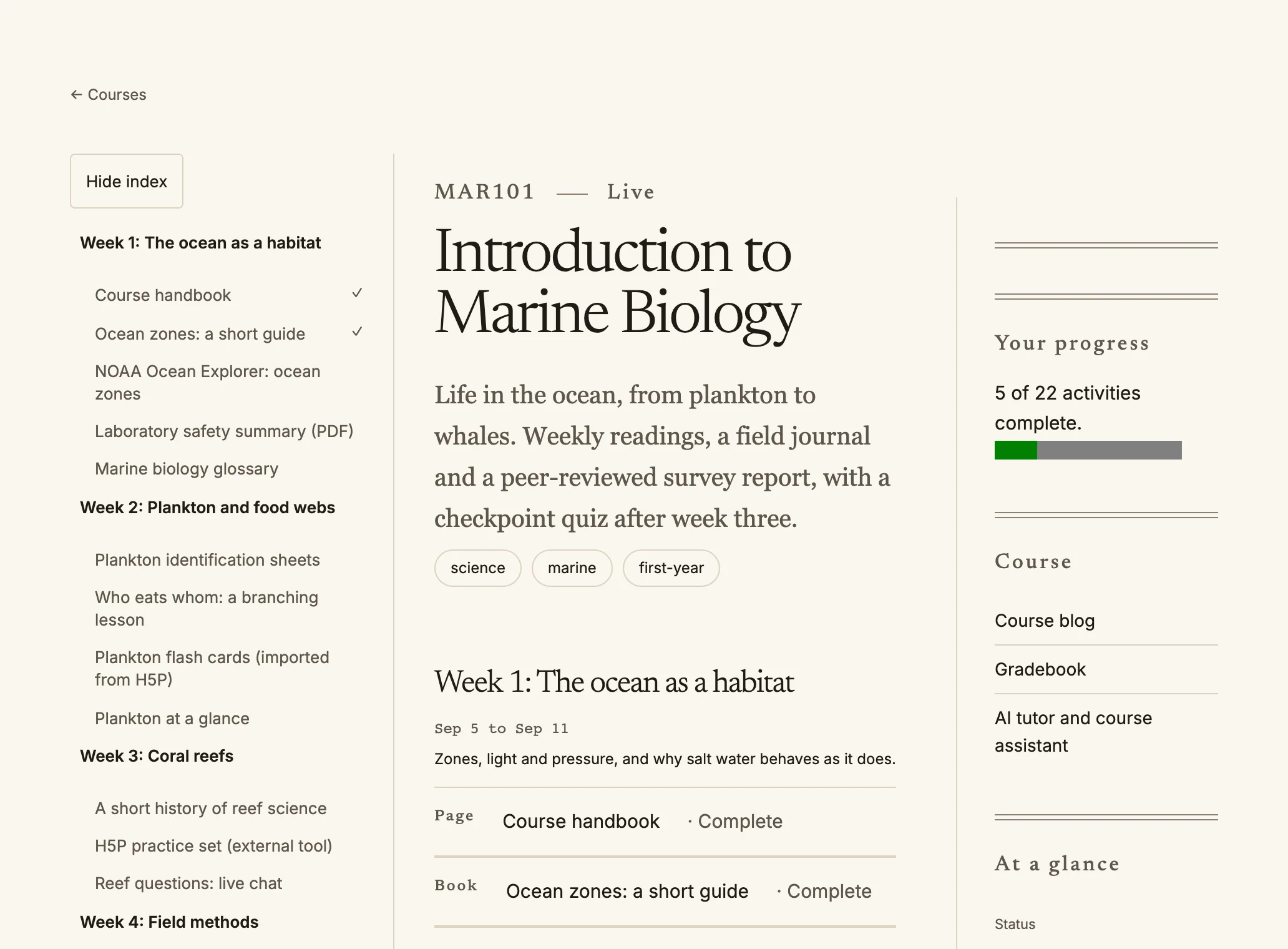
Inside a course: the index on the left, your progress on the right.
- **我的课程**(`/my/courses`)会列出您选修的所有课程和学习进度。
- 进入课程后,左侧的课程目录(从右向左阅读的语言则位于右侧)可带您前往任意章节。勾号表示您已完成的内容。
- 其他组织共享给您所在组织的课程也会列在这里,并标明由该组织**共享**。您可以像学习其他课程一样学习;作答和成绩由您所在的组织保存。
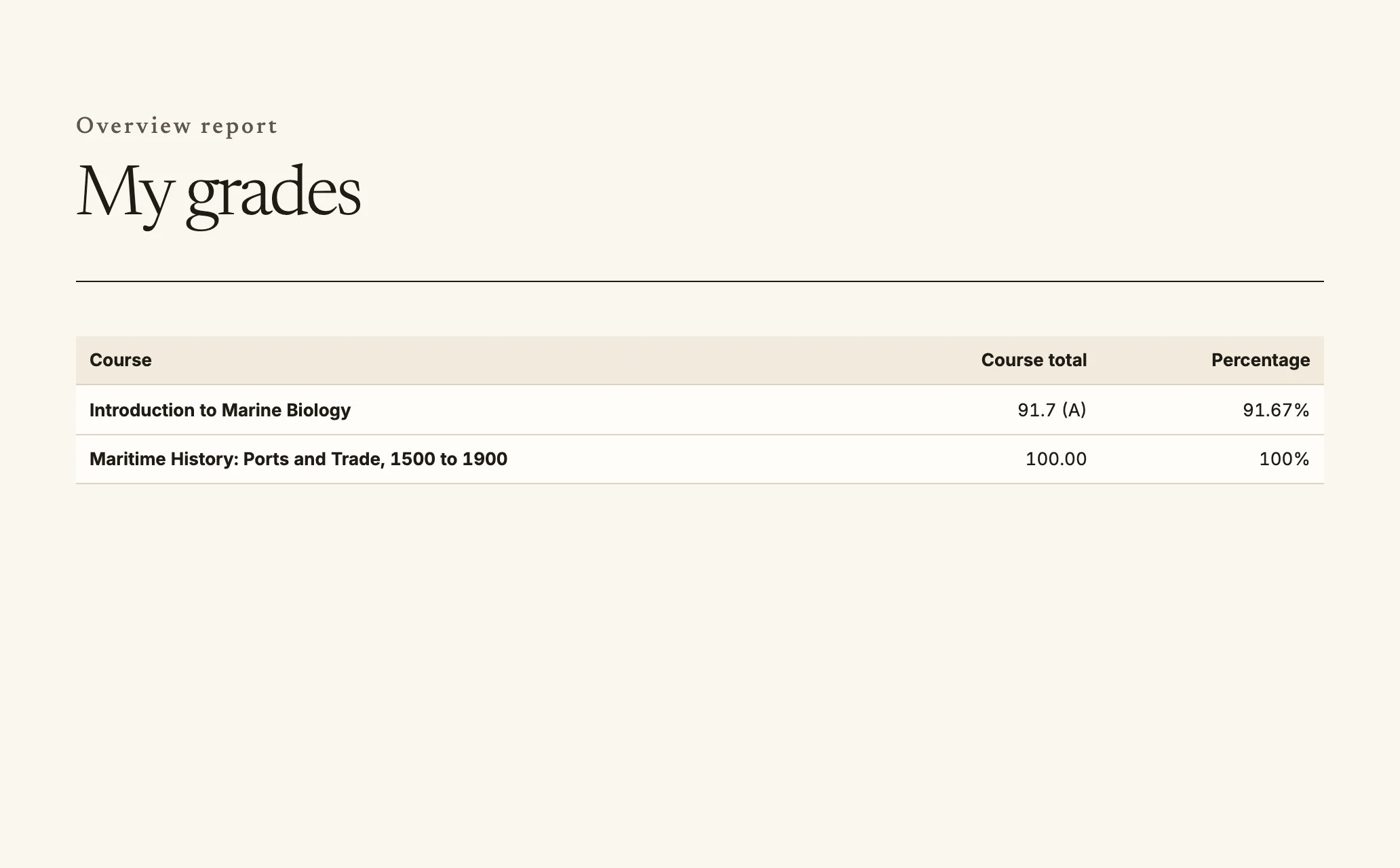
- **成绩**(`/my/grades`)会在教师公布后显示您的分数和反馈。
- **证书**(`/my/certificates`)和**徽章**(`/my/badges`)会保存您获得的奖励,并提供可供任何人验证的链接。
My grades shows one row for each course.
## AI 导师
如果您的组织提供 AI 导师,设有该功能的课程会有一个 **AI 导师**页面。您可以在这里提问,AI 导师会依据您有权查看的课程资料回答,并附上来源。首次提问前,您需要接受组织的 AI 使用政策。回答可能有误,请结合课程内容核实。
课程教师可以阅读导师对话。每次有人阅读都会被记录,您也能看到相关信息:对话中会说明工作人员已阅读、阅读者是谁以及阅读时间;**AI 导师访问日志**(`/my/ai-privacy`,隐私页面也有链接)会列出每次阅读。对话会保留组织设定的期限,然后删除;课程结束后,您也可以自行删除对话。
## 离线学习
您可以下载课程,在火车上或信号中断的地方离线学习。
1. 打开课程并选择**下载以供离线使用**。Quire 会将课程页面和文件保存在这台设备上。
2. 照常学习。离线时页面会显示提示横幅。
3. 离线时完成的操作(例如勾选清单项目)会保存在设备上,并在恢复联网后发送。`/offline` 会列出等待发送的内容,允许您重新发送,并说明哪些内容发送失败及原因;您可以选择**重试**或**放弃**。
要释放空间,请在 `/offline` 选择**从此设备移除**。退出登录会从设备中移除您所在组织的所有下载内容。
在手机或平板上,您还可以从账户菜单**安装** Quire,让它像应用一样打开。
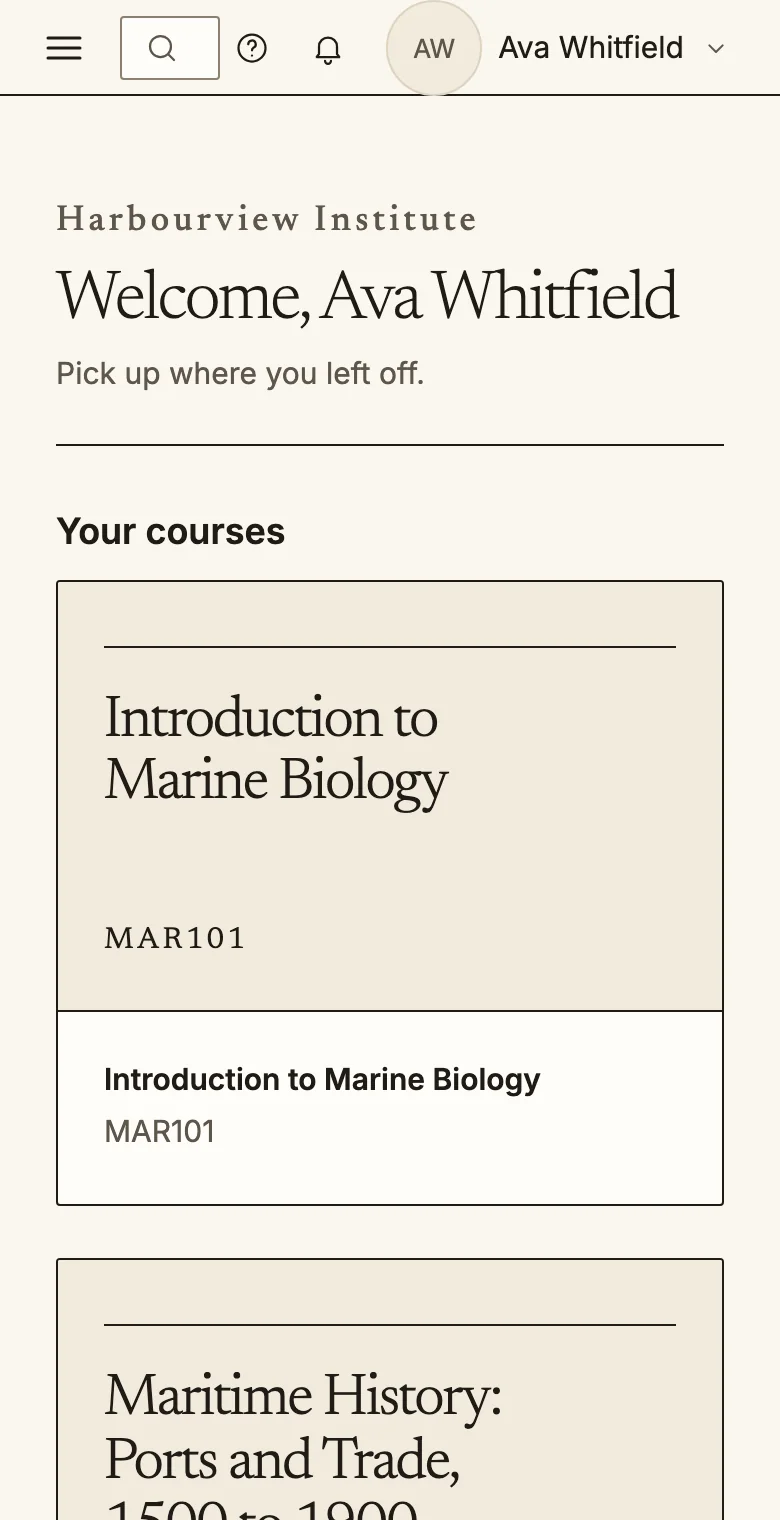
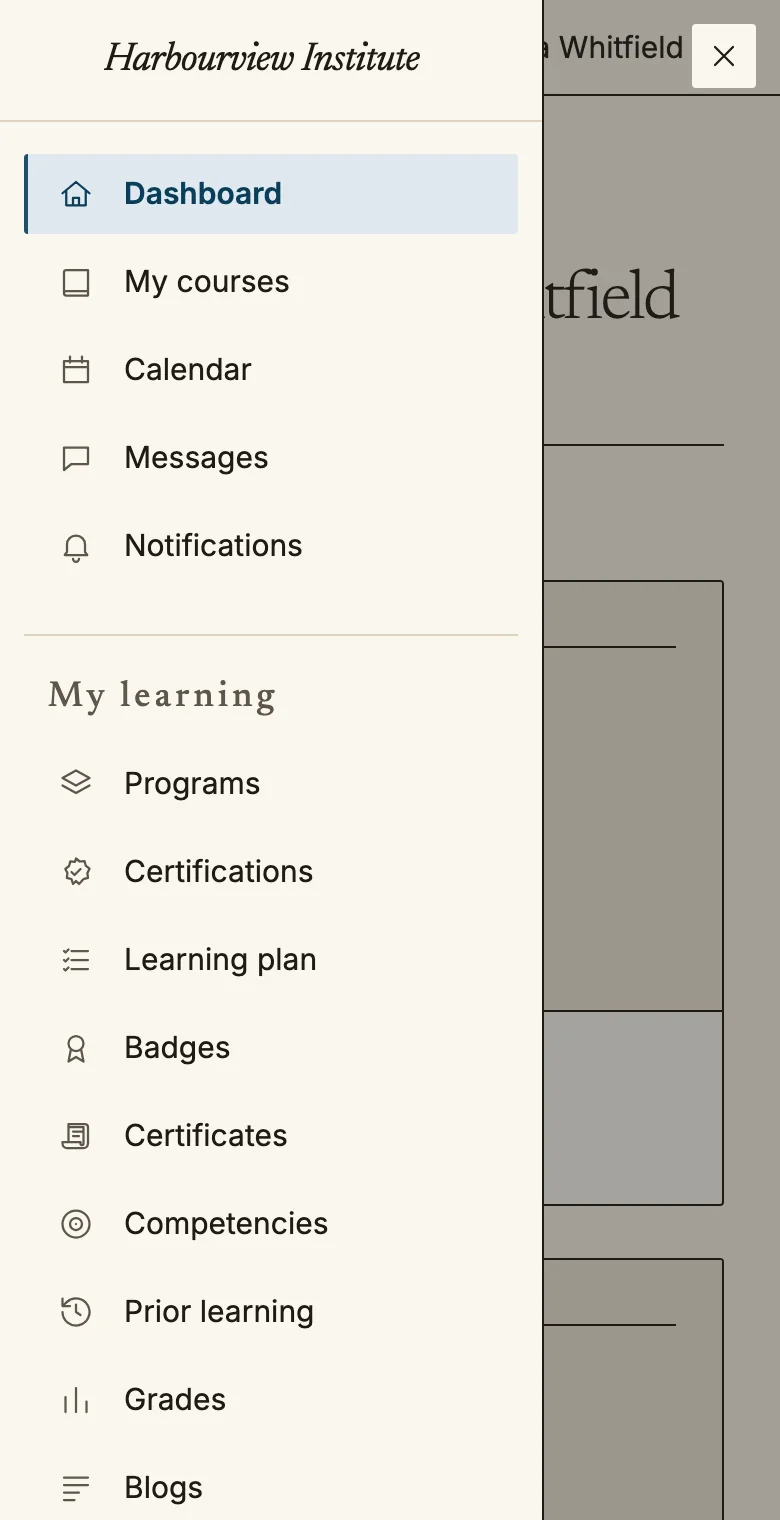
On a phone the navigation opens from the menu button at the top left.
## 调整 Quire 的阅读体验
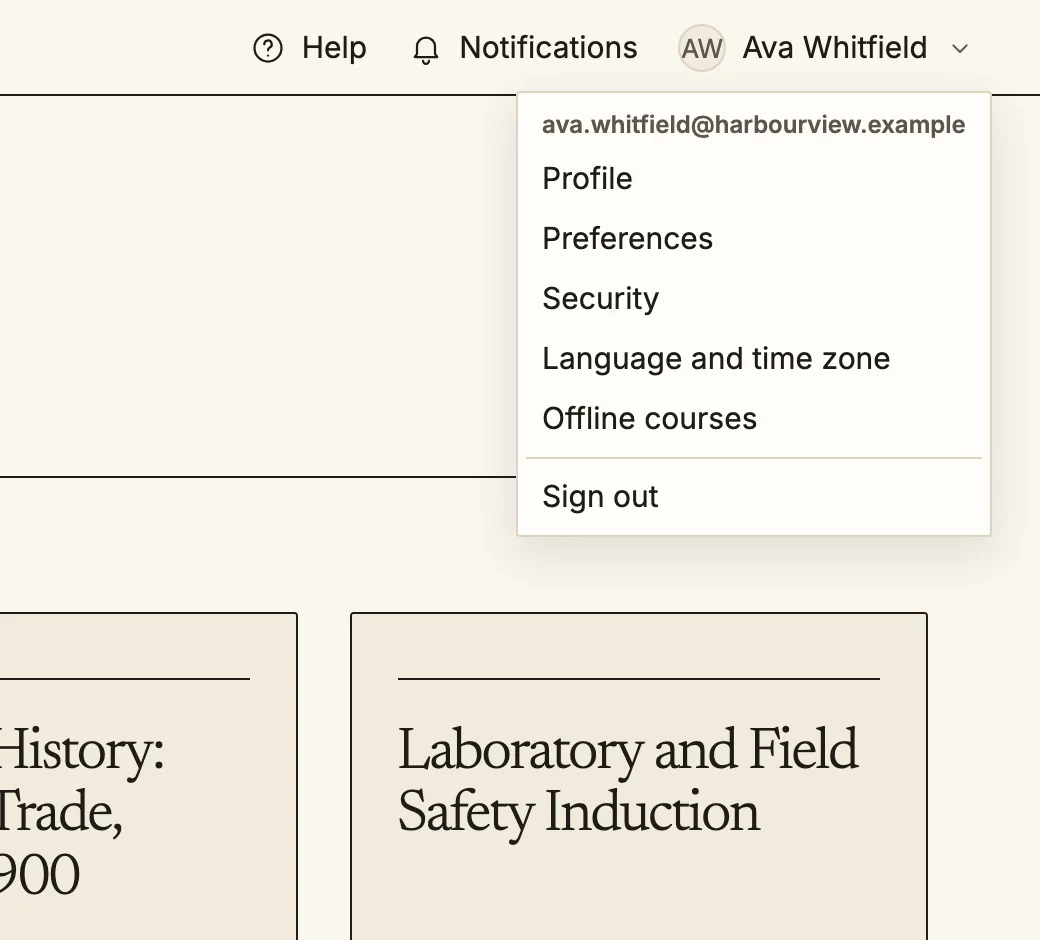
从账户菜单(`/account/preferences`)打开**偏好设置**。
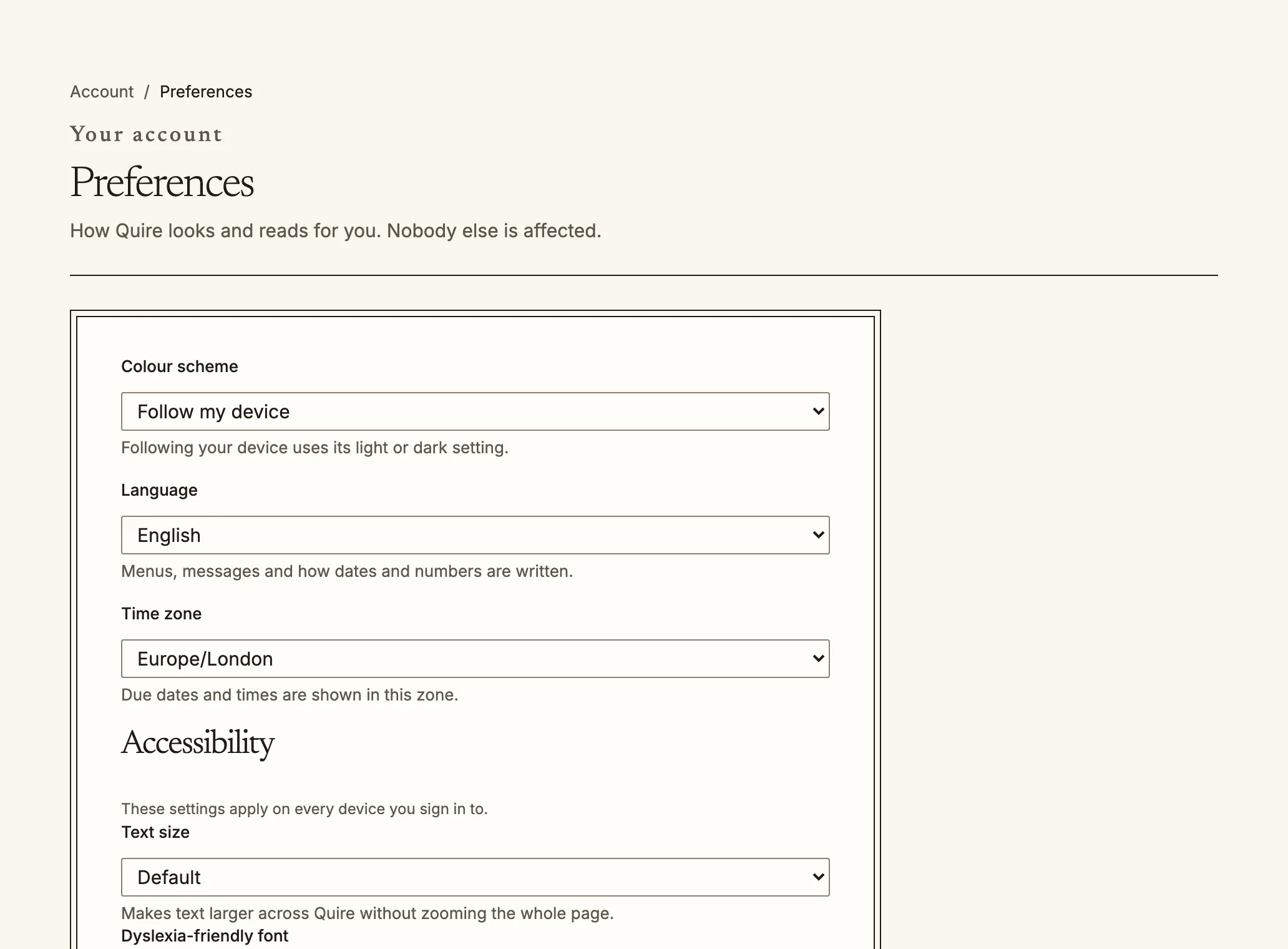
The account menu is at the top right of every page.Preferences: colour scheme, language, time zone and accessibility.
- **语言**:从一百多种语言中选择。20 种语言有完整翻译;其他语言翻译了菜单和主要页面,其他位置仍显示英文。标记为**机器翻译**的语言由系统自动翻译,措辞可能不够准确。阿拉伯语、希伯来语、波斯语和乌尔都语从右向左显示。
- **文字大小**:可选择默认、大、较大或最大(最大可达通常大小的 1.5 倍),无需缩放页面即可在整个 Quire 中生效。
- **适合阅读障碍的字体**:字形区分明显、字间距更大的字体。
- **减少动态效果**:无论设备如何设置,都会以淡入淡出替代移动效果。
- **高对比度**:增强文字、边框和焦点轮廓的对比度。
- **配色方案**:浅色、深色或跟随设备设置。
- **时区**:截止日期和时间会按此时区显示。
这些偏好设置会同步到您登录的每台设备。
## 键盘和屏幕阅读器
每个页面开头都有**跳转到主要内容**链接,主要区域也会标记为地标(导航、主要内容、通知),方便屏幕阅读器在区域间跳转。鼠标可以执行的所有操作都可以用键盘完成;按 `Tab` 移动,按 `Enter` 执行操作。
## 词汇表链接
如果课程中有词汇表,那么课程文本在课程、论坛帖子、测验题目和摘要中提到词汇表定义的术语时,可能会显示链接。点击链接即可查看定义。
## 您的数据
您的组织决定 Quire 会保存哪些关于您的信息以及保存多久;每个页面底部都链接了组织的隐私政策。您也可以在 `/account/privacy` 管理自己的数据:
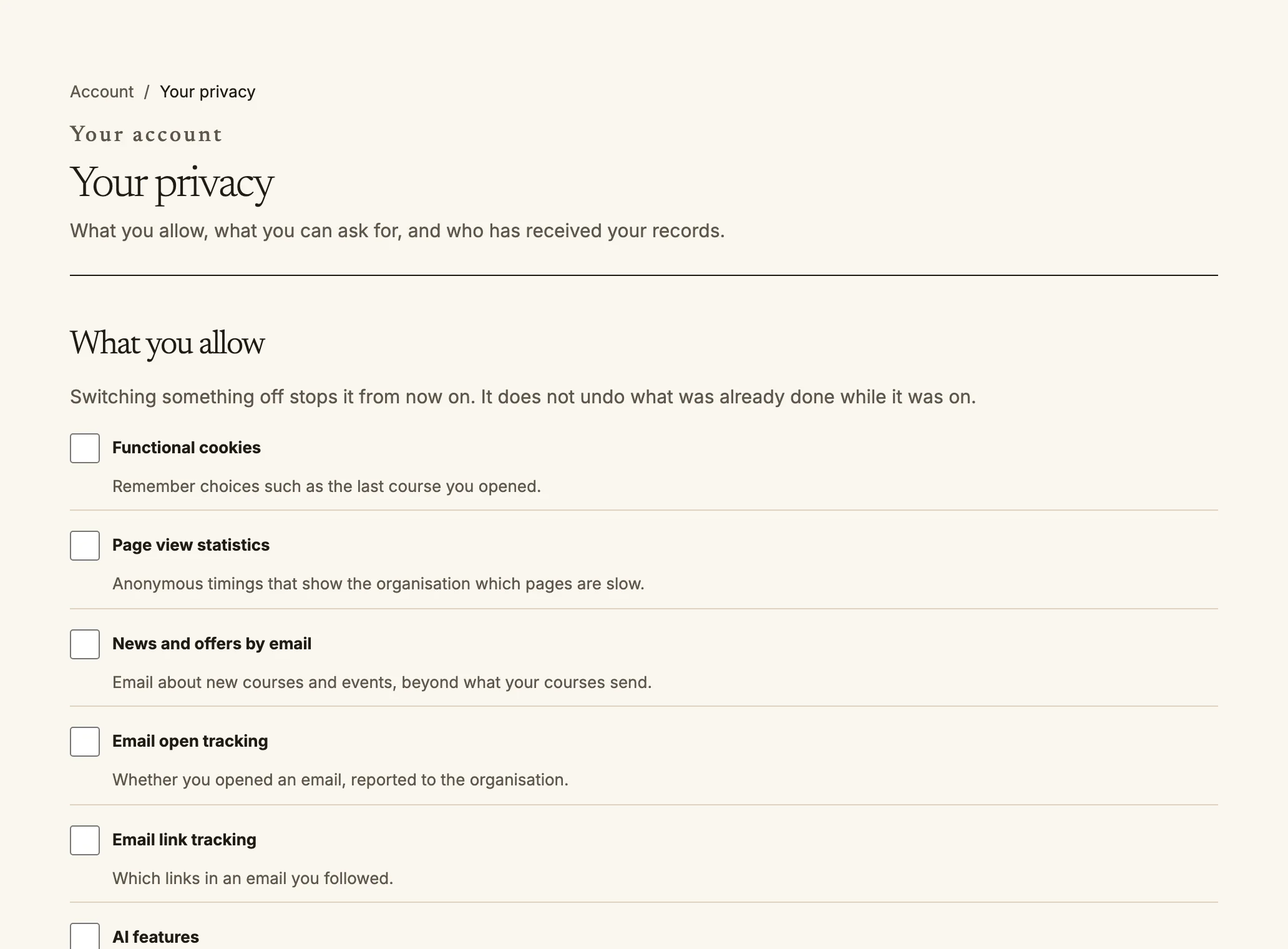
Your privacy: choose what you allow, and ask about your data.
- **您允许的用途**:关闭分析、营销和 AI 功能等用途。关闭后会停止今后的使用,但不会撤销此前已进行的处理。未达到同意年龄的学习者默认关闭这些用途,直到监护人同意为止。
- **在目录中隐藏我**:不向不负责教学或管理您的人员显示您的姓名和个人资料,也不在人员列表和搜索结果中显示。
- **申请处理您的数据**:申请获取数据副本、可携带的数据副本、更正数据或删除账户。Quire 会向您发送确认链接;在您打开链接前不会执行任何操作。组织的隐私负责人会处理申请;此页面会列出每项申请的状态和到期日。您确认删除申请后会等待 24 小时;在此期间可以撤回申请。组织依法必须保留的记录(例如成绩和证书)会继续保存,但不再显示您的姓名。
- **谁收到过您的记录**:列出每次将您的教育记录提供给组织外部人员的情况和原因。
- **AI 导师对话**:通过同一页面上的链接查看谁阅读过对话。
Source: https://docs.quirelms.com/zh-Hans/learner/index.mdx