 Quire
Quire
/admin/settings holds what is true of the whole organisation: its name and
addresses, the language and time zone people start with, which parts of Quire
are switched on, and who counts as a learner in the gradebook. Logo, colours and
the sign-in page are under Branding (/admin/appearance/branding).
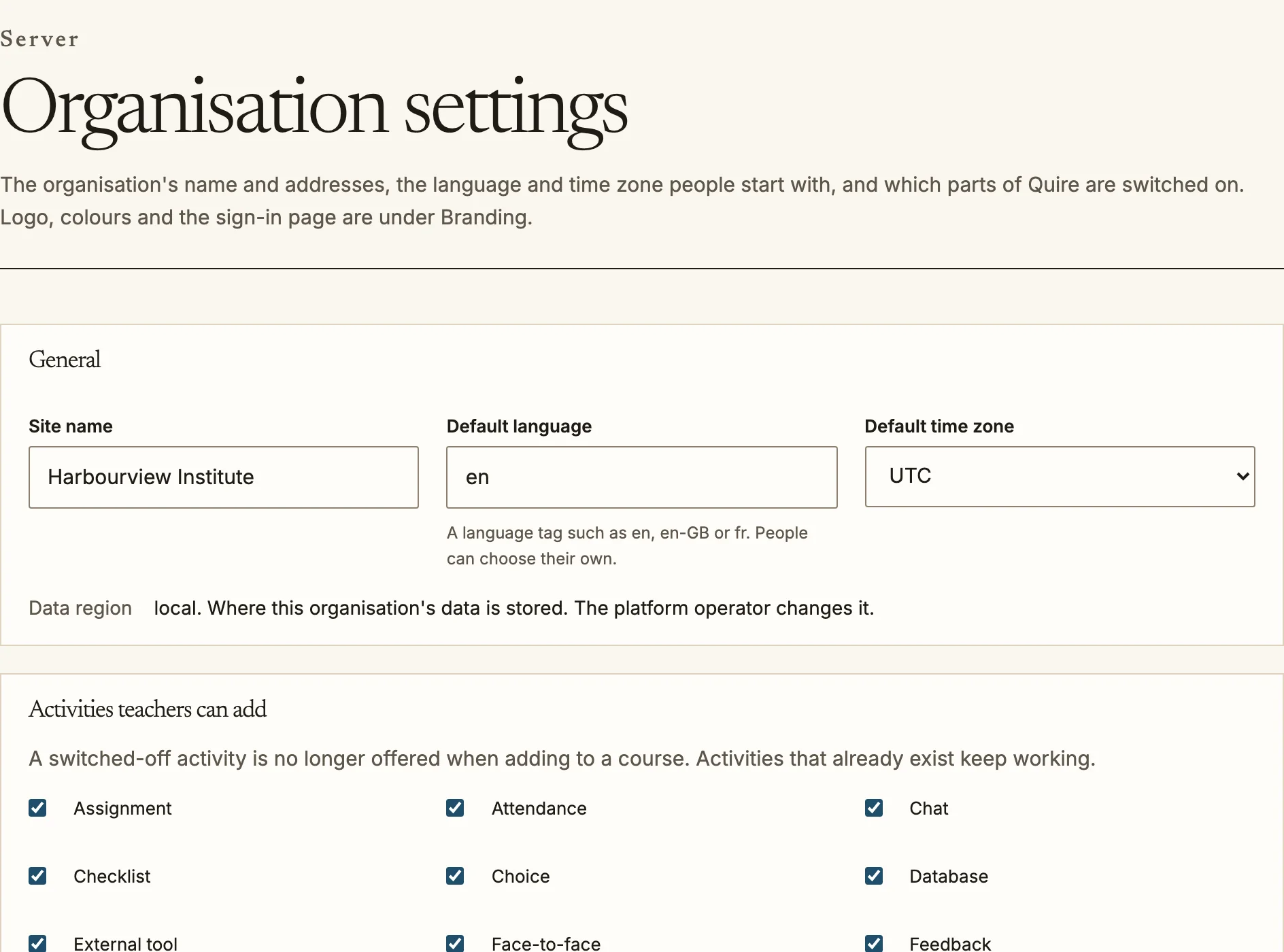
General
- Site name, Default language and Default time zone are what a new
person sees until they choose their own at
/account/preferences. The language is a tag such asen,en-GBorfr. - Data region says where the organisation’s data is stored. It is shown here and changed by the platform operator, not from this page.
Addresses
Every organisation has a Quire subdomain. On a plan that includes custom domains you can also Add your own domain: Quire shows the two DNS records to publish, and the domain works once they are found (this can take up to 48 hours; Check DNS now looks again). Choose Make main to move the organisation to another address. Everybody signed in on the old address is signed out and links saved to it stop working, so Quire asks you to confirm first. A domain that is already registered keeps working if the plan later stops including custom domains.
Activities and parts of Quire
- Activities teachers can add lists every kind of activity. Switch one off and it is no longer offered when adding to a course; activities that already exist keep working.
- Parts of Quire switches whole areas on or off: calendar, messages, programs, certifications, learning plans, badges, certificates and the AI course builder. A switched-off area is removed from everybody’s navigation.
Both lists sit beside the extensions an installation provides: an extension that is off is unavailable everywhere at once, while these switches hide activities and areas that remain installed.
Graded roles
Being enrolled in a course does not make someone a learner in its gradebook. A teacher is enrolled in the course they teach, and a gradebook that counted them would show empty rows for staff, average them into the course statistics and export them with the class.
Graded roles names the roles whose holders are graded. The grader report, grade exports, grade summaries and learner counts list only those people, and course completion is recorded and reported for them only. A person is graded in a course when they hold one of the roles there, in the course or in a context above it.
- By default every role of the learner type is graded.
- Tick other roles, including roles you created, to grade them too, and choose Save graded roles. At least one role must be chosen.
- Use the default returns to the learner type.
Changing the setting changes what is listed and computed from then on. Nothing is deleted: what already exists for people outside the graded roles is kept, and is simply no longer listed or recomputed.